
Skip to content
assostro-header-logo
assistro
  • Integrations
    • Zapier
    • Shopify
    • HubSpot
    • Make
    • N8N
    • Chrome Extension
      • HubSpot
      • ClickUp
      • Monday.com
    • Flavor CRM
    • WordPress (Coming soon)
    • Metro Accounting (Coming soon)
  • Learn
    • Blog
    • Developer Guide
    • User Guide
    • Tutorial
  • Pricing
  • Contact Us
  • Get Started
Get Started

Extension

5
  • Define your own template to send schedule message
  • Send Message at a scheduled time using SyncMate
  • Bulk messaging at a scheduled time using SyncMate
  • Sending a Direct Message Without Saving a Number on WhatsApp
  • An onboarding guide for Extension

Other

11
  • How to use SyncMate in a 3rd Party application via OAuth – The Secure way
  • Assistro Dashboard
  • After Installation : Setting up SyncMate Chrome Extension
  • Getting Started with SyncMate and Shopify Integration: A Step-by-Step Guide
  • SyncMate User Guide: Regenerating Your Token
  • How to back up your WhatsApp chats in HubSpot?
  • How to Keep Your WhatsApp Account Safe & Avoid Bans
  • Resolving Message Sending Failures
  • How to Subscribe to a Plan
  • How to Cancel Your Subscription
  • How to Add More Message Credits

SyncMate

6
  • How to Connect your WhatsApp with SyncMate?
  • Connect your WooCommerce App with SyncMate
  • Connect your Contact Form 7 App with SyncMate
  • Troubleshooting and Reconnection Guide
  • How to use SyncMate X Shopify Application ?
  • How to send automated WhatsApp messages on Google Calendar events?

Developer Guide

3
  • SyncMate User Guide: Regenerating Your Token
  • How to Set Up Webhooks for WhatsApp Events in SyncMate
  • Connect your Custom App with SyncMate

Tutorial

2
  • SyncMate Introduction Video
  • Use WhatsApp API with Custom applications using SyncMate

HubSpot

9
  • Connect your HubSpot App with SyncMate
  • How to Save a WhatsApp Contact to HubSpot Using SyncMate?
  • How to create a Deal for a WhatsApp Contact in HubSpot via SyncMate?
  • How to Create a Note for a WhatsApp Contact in HubSpot using SyncMate?
  • How to Create a Task for a WhatsApp Contact in HubSpot using SyncMate?
  • How to Create a Ticket for a WhatsApp Contact in HubSpot through SyncMate?
  • How to Create a Log for a WhatsApp Contact in HubSpot through SyncMate?
  • How to Back Up and associate Your Contacts’ Data in HubSpot?
  • An Onboarding Guide for HubSpot Via SyncMate

Zapier

7
  • How to fetch WhatsApp Group ID – Guide to Fetch Group ID
  • How to fetch WhatsApp Channel or Newsletter ID – Guide to Fetch Channel or Newsletter ID
  • How to connect Zapier with SyncMate?
  • How to send a WhatsApp notification to any individual?
  • How to send a WhatsApp Notification to any group or channel?
  • An onboarding guide for Zapier via SyncMate
  • How to connect Flavor CRM with SyncMate?

N8N

2
  • How to Send WhatsApp Messages via Assistro in n8n?
  • Connect your N8N with SyncMate

Shopify

1
  • Connect your Shopify with SyncMate

make

1
  • Connect your Make with SyncMate

Pabbly

1
  • Connect your Pabbly with SyncMate

Monday

1
  • Connect your Monday App with SyncMate

Integrately

1
  • Connect your Integrately with SyncMate
View Categories
  • Home
  • user-guide
  • Zapier
  • How to send a WhatsApp Notification to any group or channel?

How to send a WhatsApp Notification to any group or channel?

1 min read

Step 1: Open your Zapier account. #
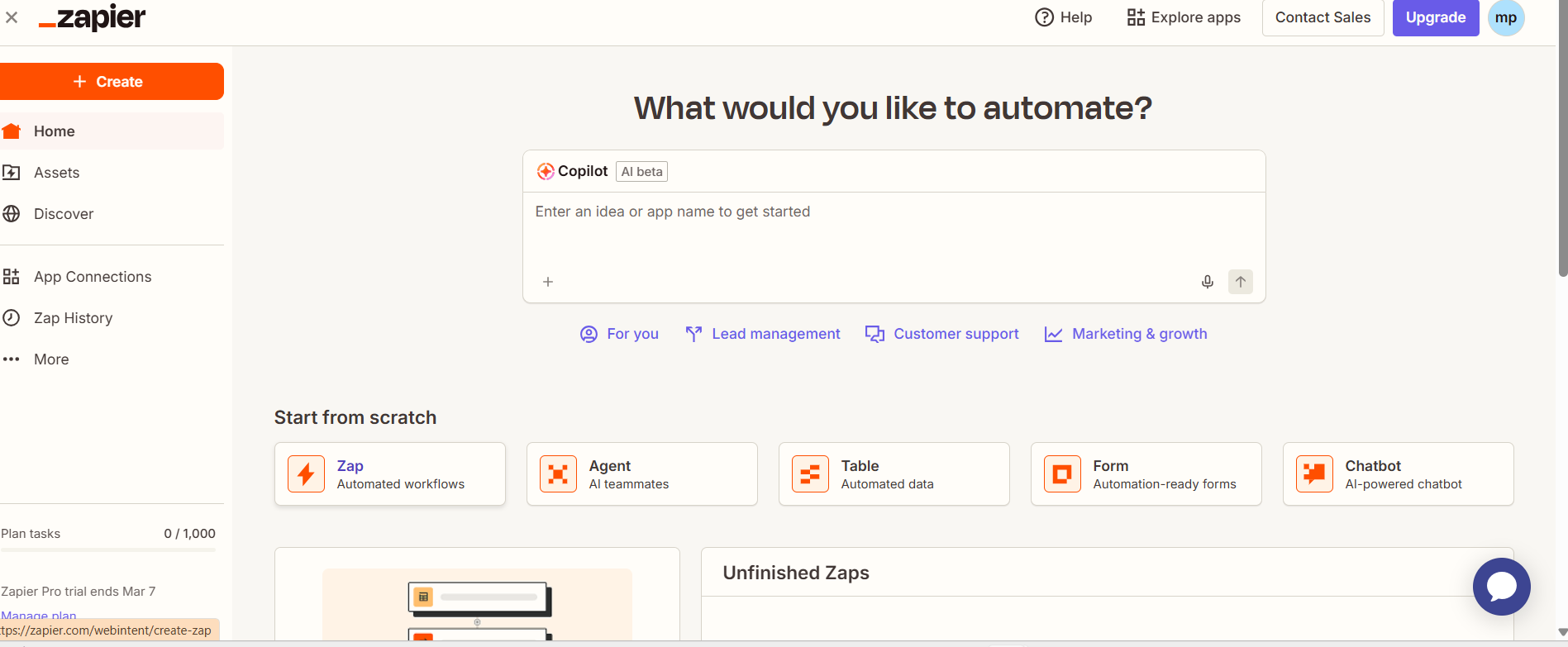
Firstly, open your Zapier account and ensure that your account is connected to Assistro. If not, then follow our guide.

Step 2: Go to create. #
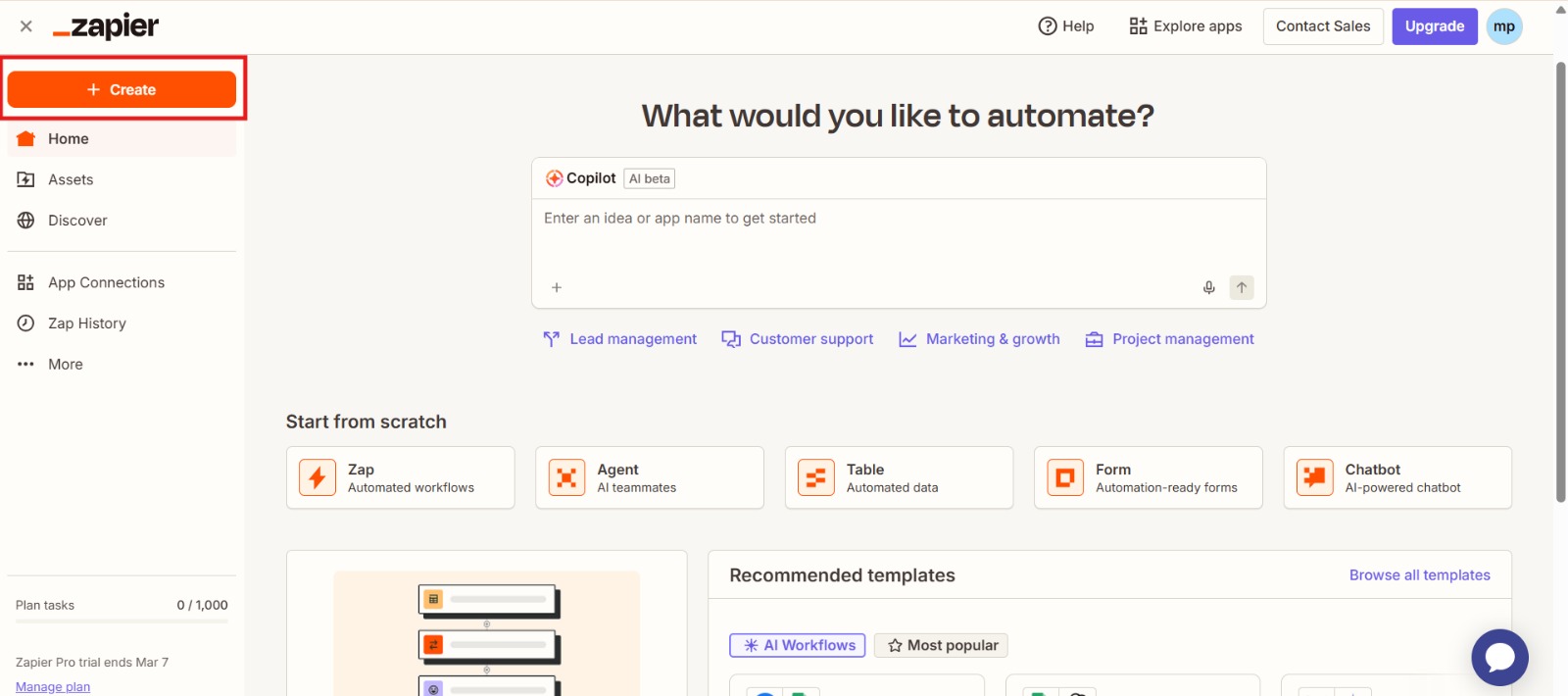
In the top left corner, you’ll get an orange color “Create” (plus sign) icon. Select it.

Step 3: Select Zaps. #
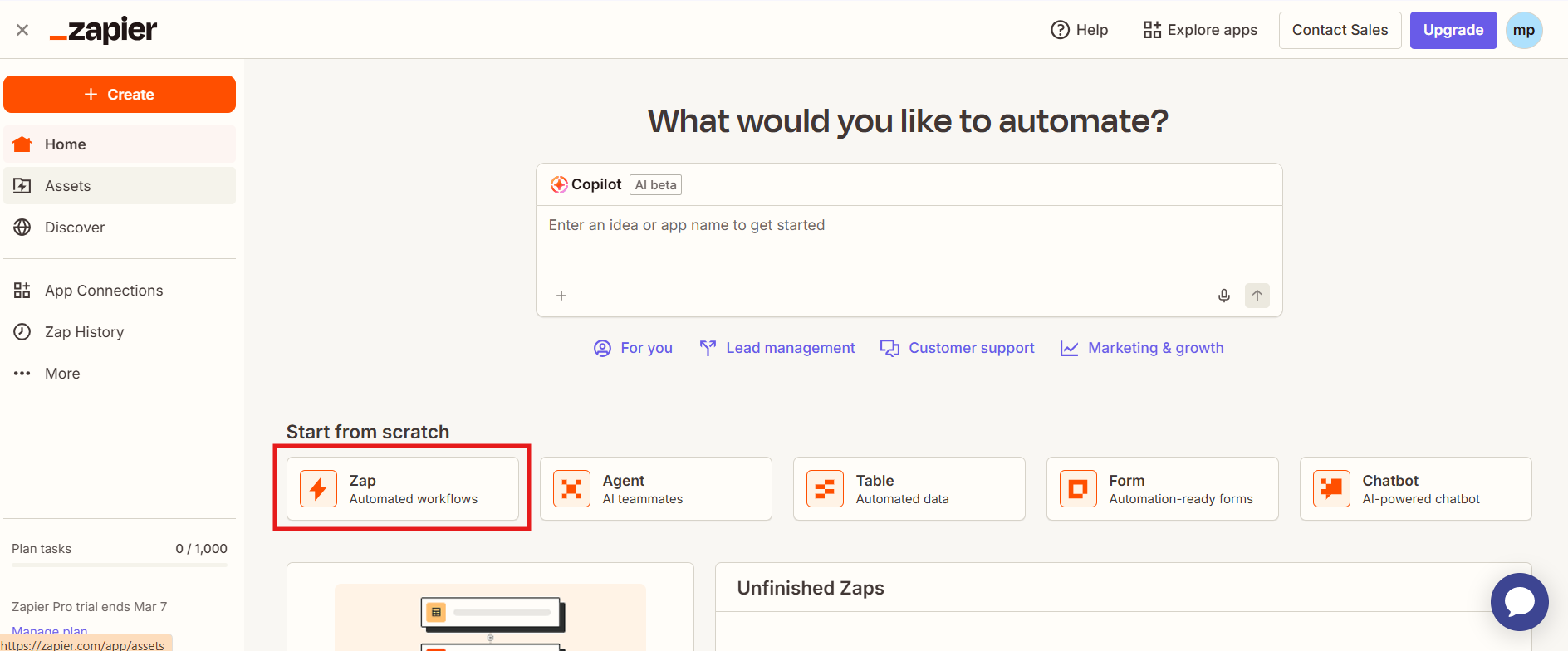
Now, a list will appear; select Zap in the list.

Step 4: Create a trigger. #
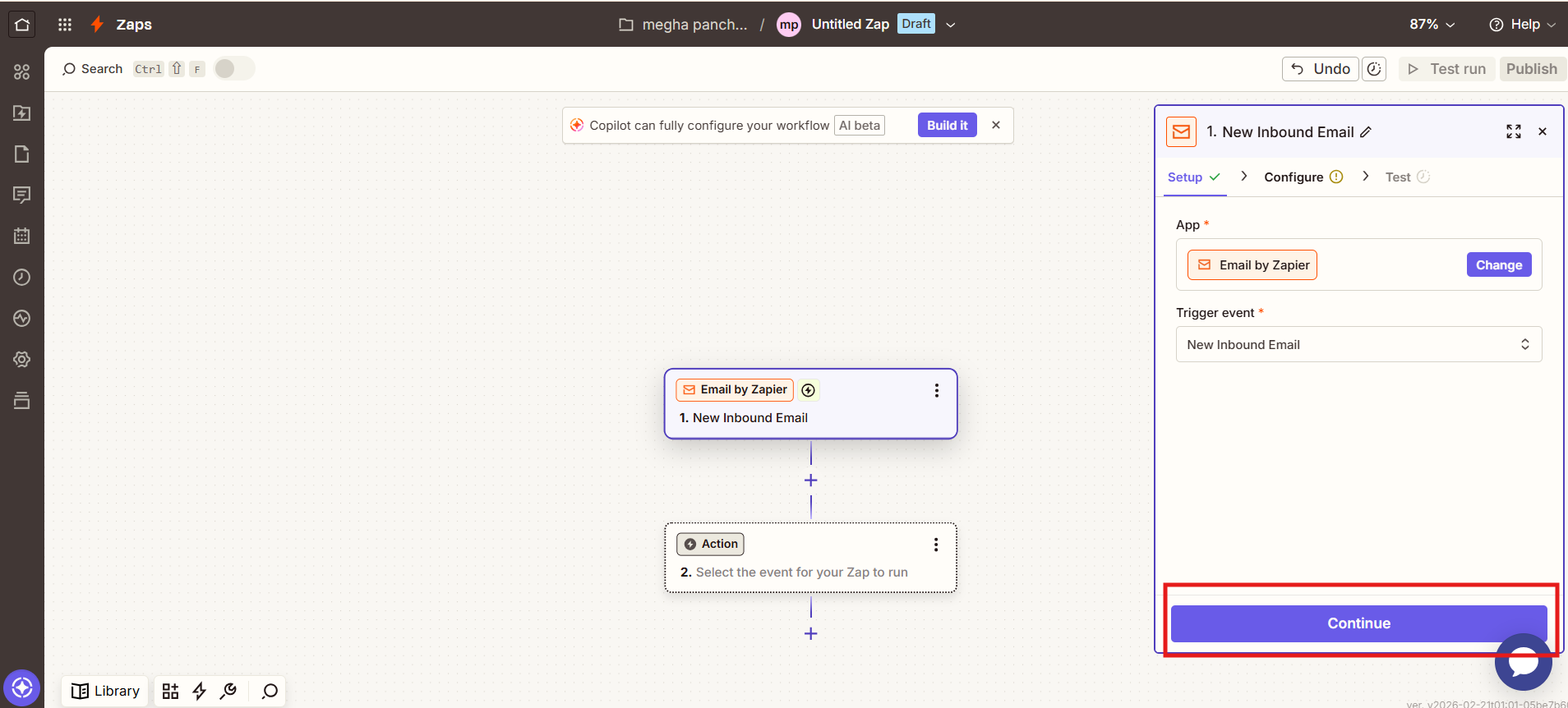
Select the trigger, complete the form by filling in the mandatory fields. Click on continue.

Step 5: Test Trigger  #
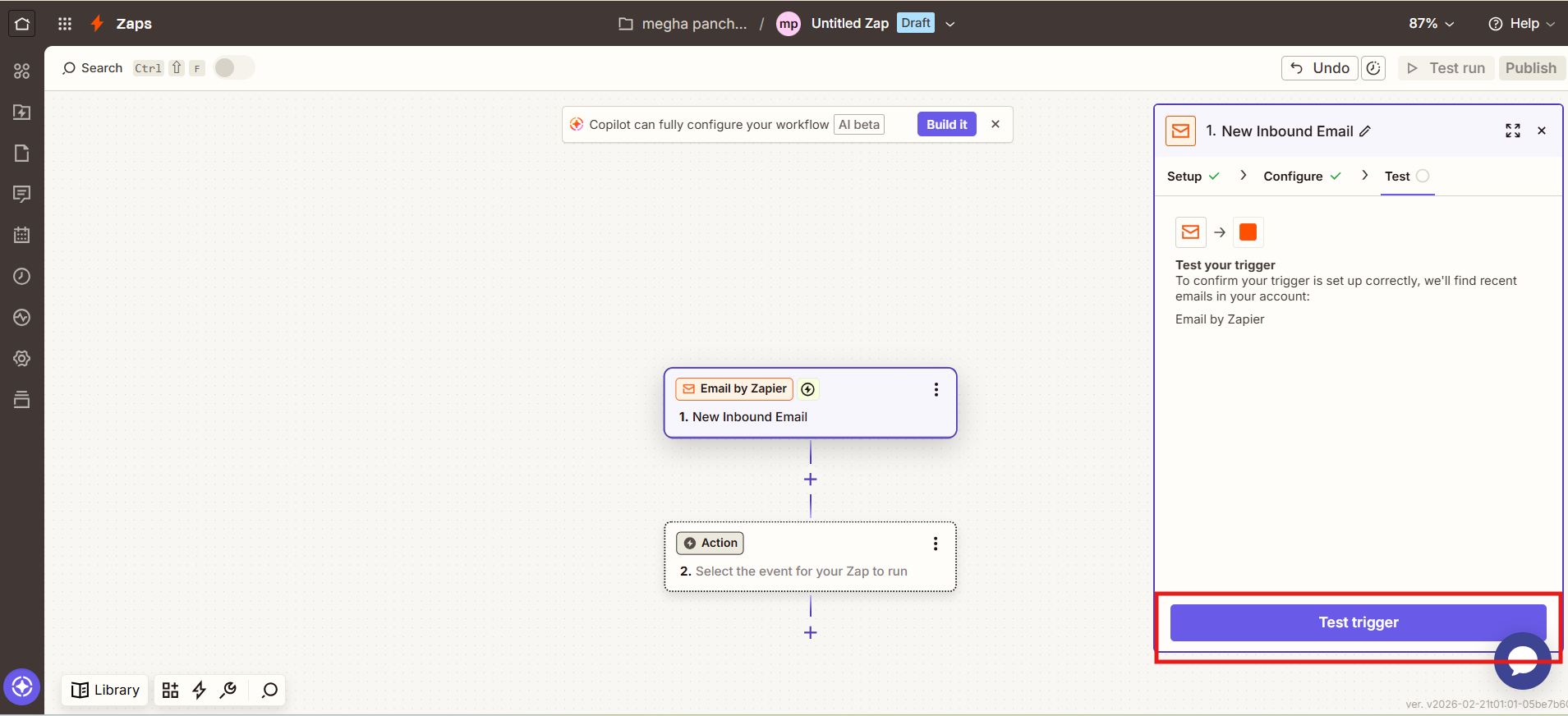
Now, by clicking “Test trigger”, test the trigger you have created. Then, click “continue with selected record”.

Step 6: Search for “SyncMate.”  #
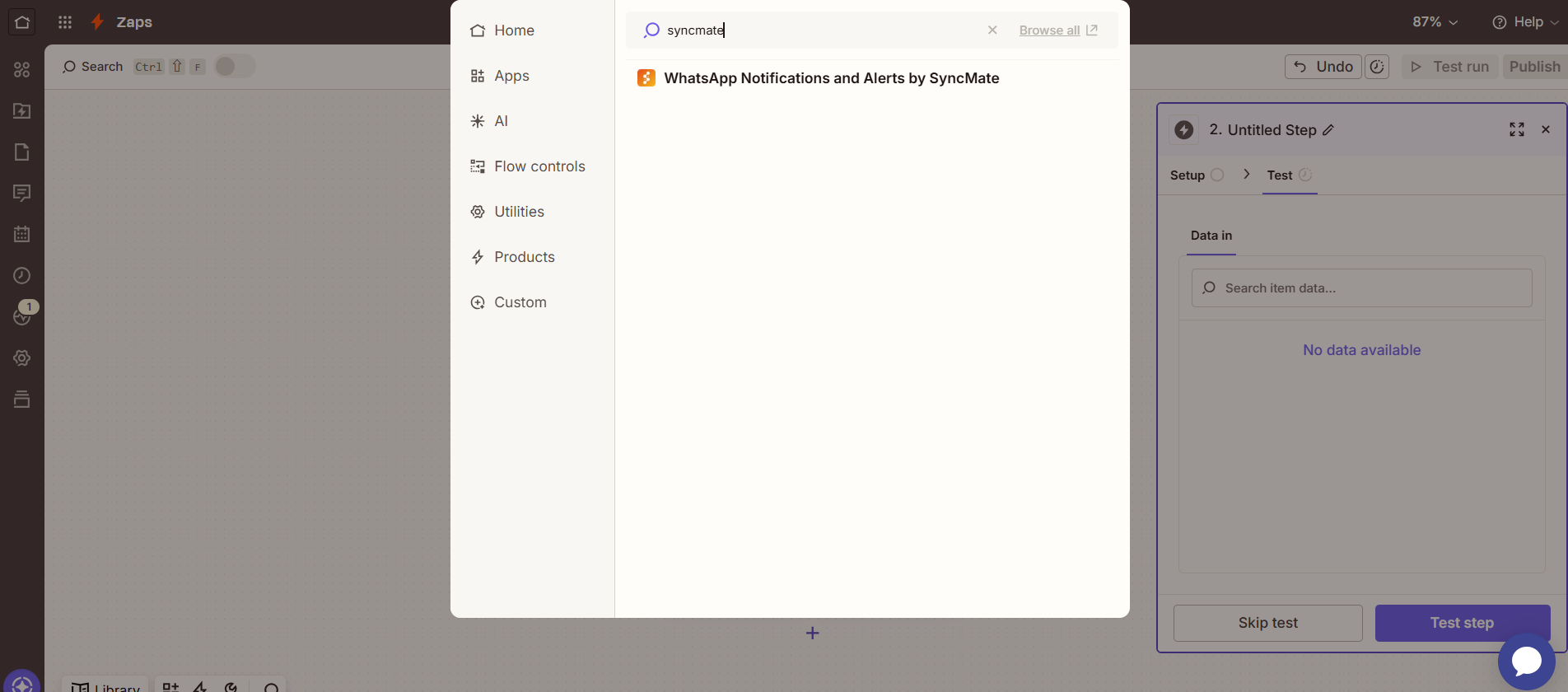
You’ll get a search bar. Search for “SyncMate” and click on the “WhatsApp Notification and alerts by SyncMate”.

 Step 7: Select the action event. #
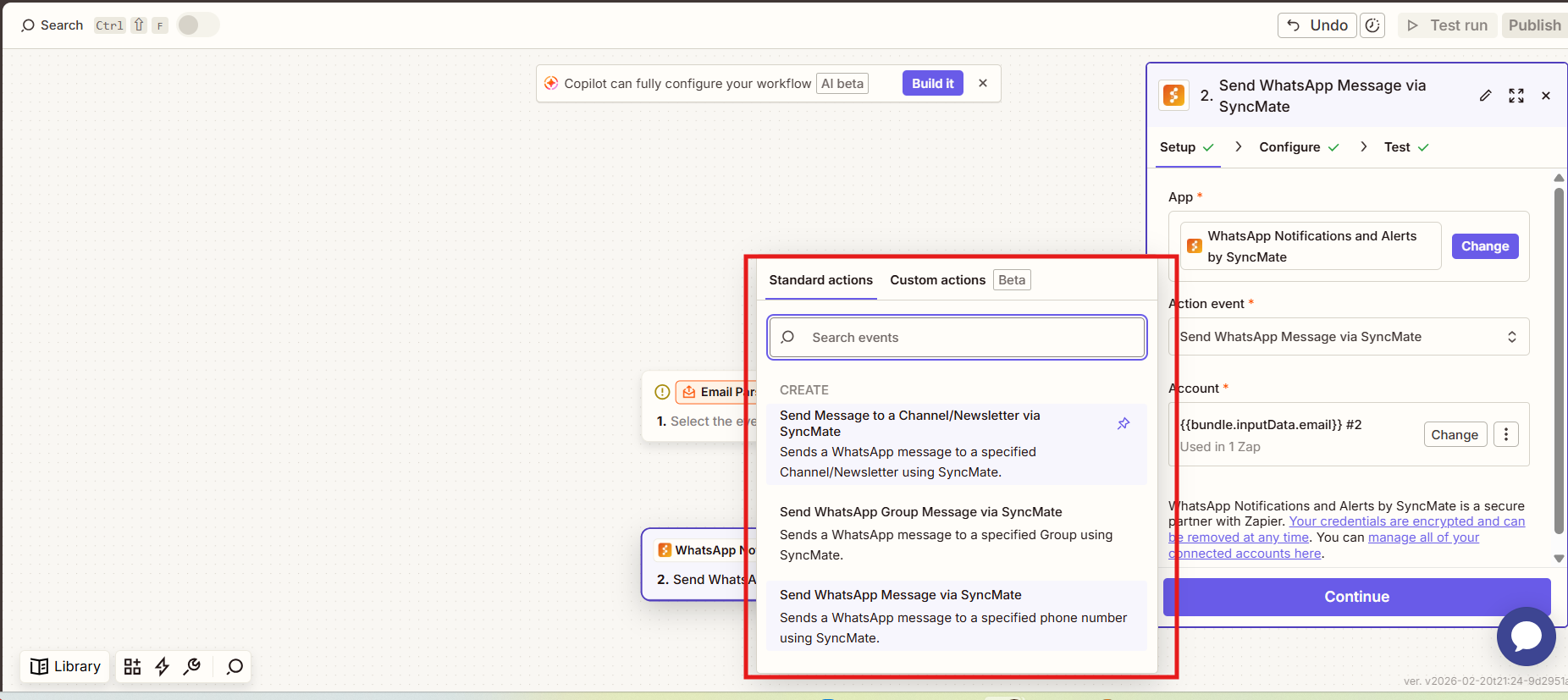
In the Action Event field, you need to select:

  • For sending a notification to any channel: “Send Message to a Channel/Newsletter via SyncMate”
  • For sending a notification to any group: “Send WhatsApp Group Message via SyncMate”

Step 8: Select account. #
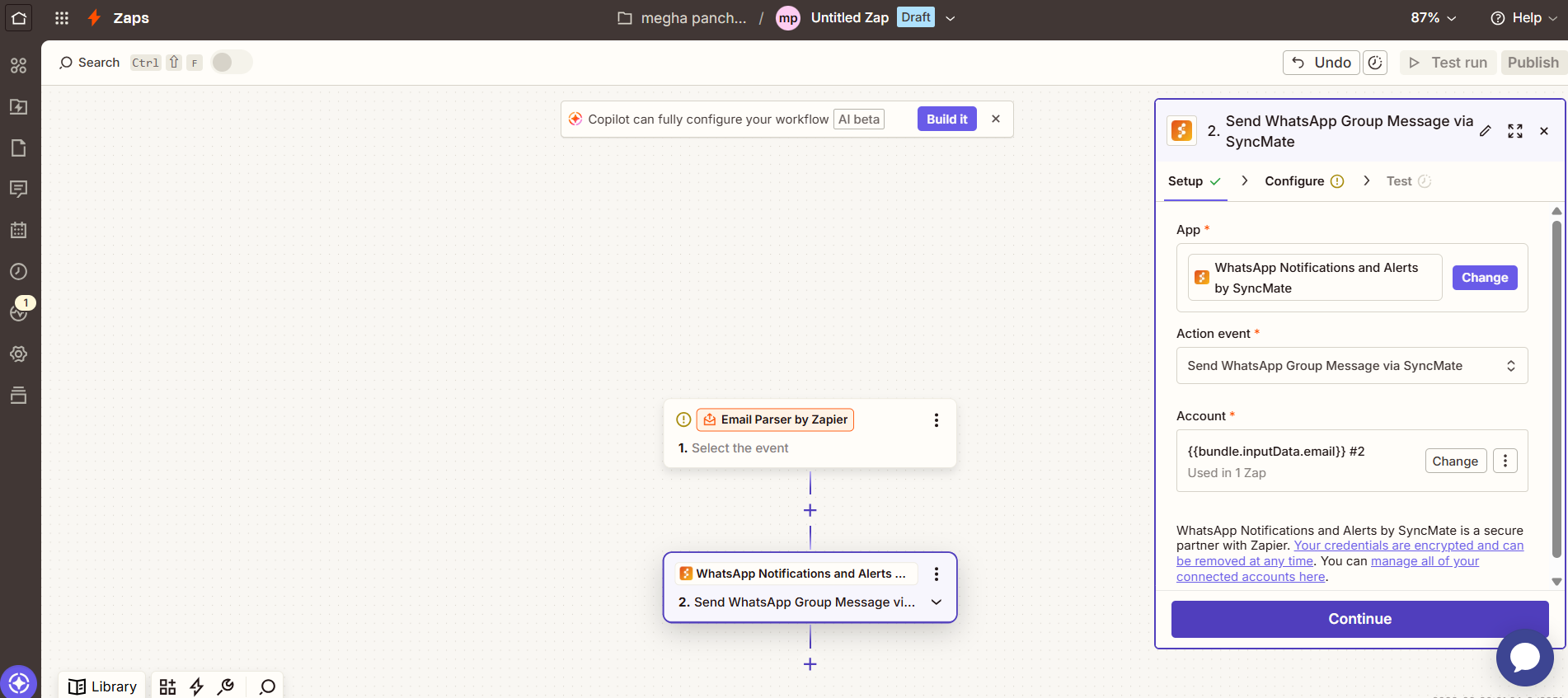
Select the account through which you want to send a message.

Step 9: Fetch the Group id. #

Now, fetch the Group Id to whom you want to send a message by using our guide: How to fetch WhatsApp Group Id?

Step 10: Customize your message. #

In the Message field, you have to customize your message. You can also add any media in the media field.

Step 11: Select continue. #
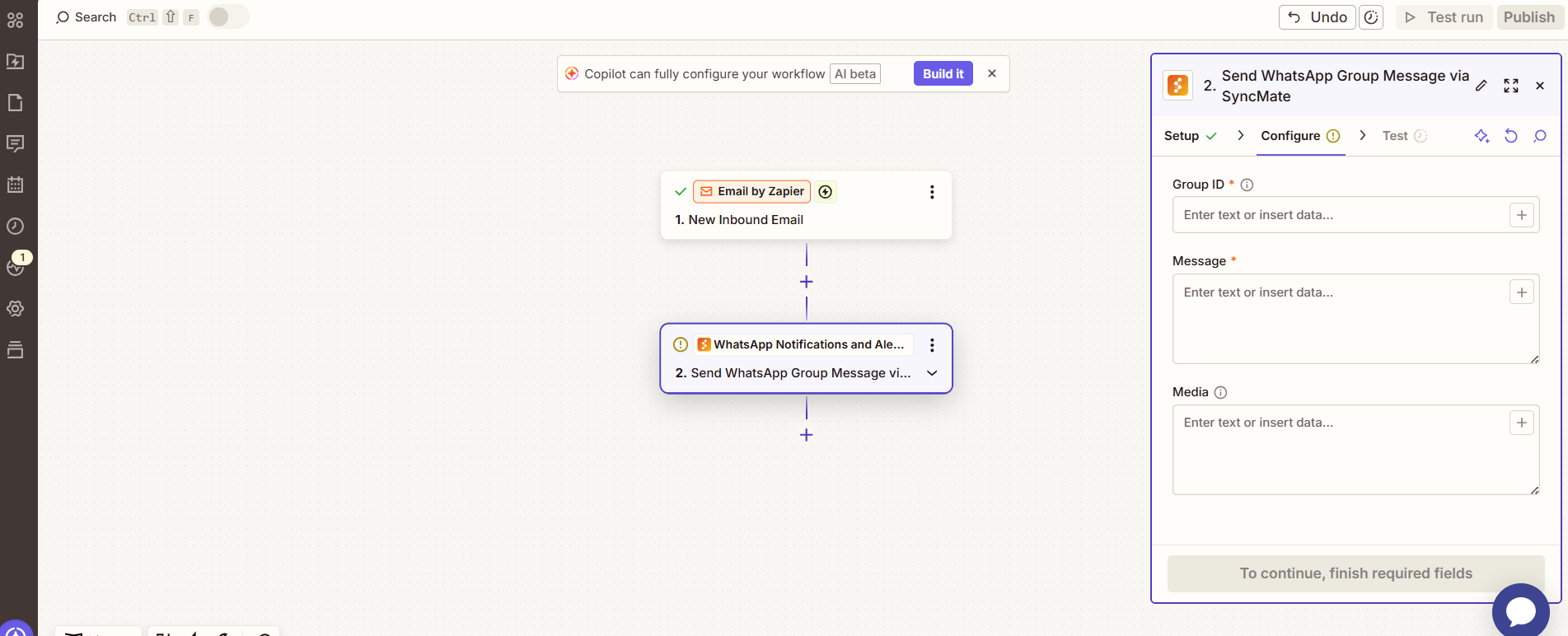
Click on the “Continue” button.

Step 12: Test and publish. #
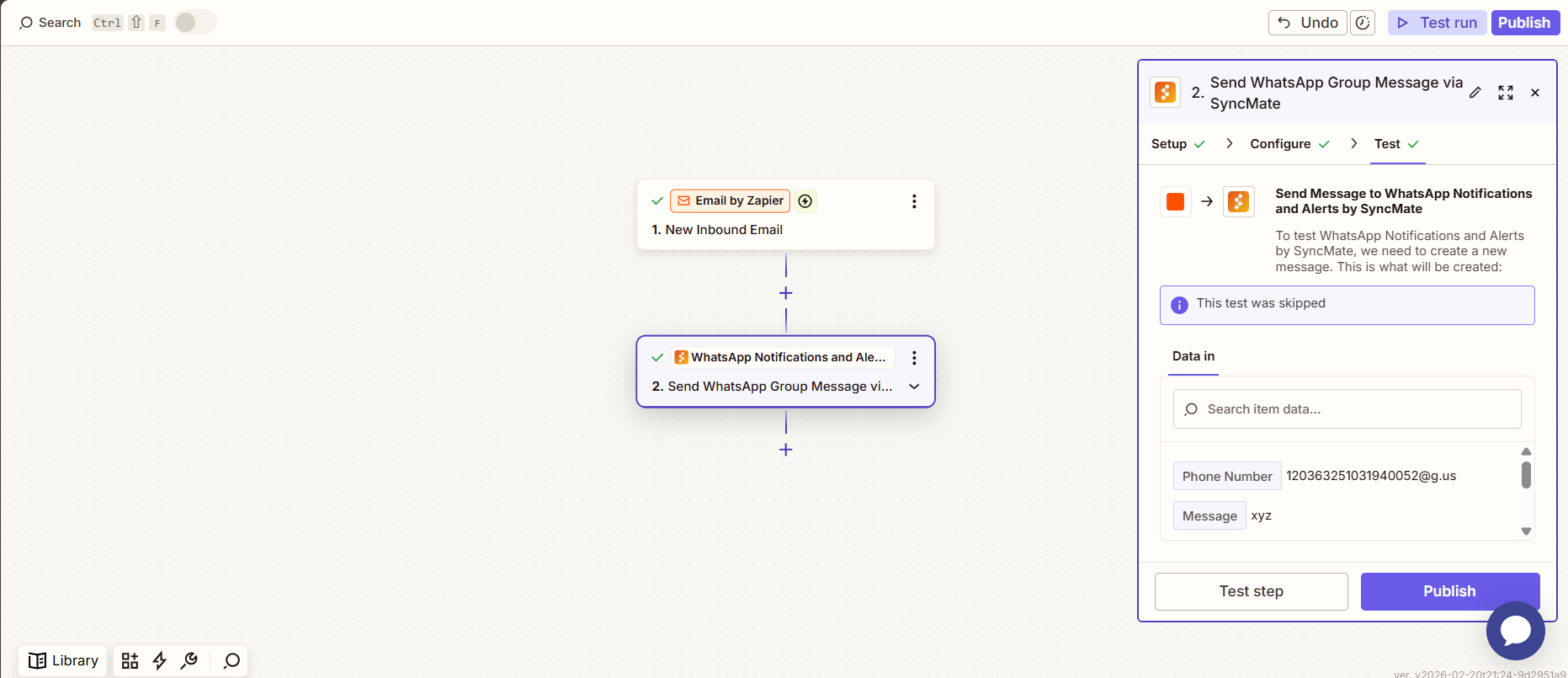
Now, if you want, you can test your Zap, then select “Test step”; otherwise, select “Skip test”.

Step 13: Publish Zap. #

Select the “Publish” Button to publish the zap.

You’ll get that your zap is working fine.

Updated on February 22, 2026

What are your Feelings

  • Happy
  • Normal
  • Sad
Share This Article :
  • Facebook
  • X
  • LinkedIn
  • Pinterest
Table of Contents
  • Step 1: Open your Zapier account.
  • Step 2: Go to create.
  • Step 3: Select Zaps.
  • Step 4: Create a trigger.
  • Step 5: Test Trigger 
  • Step 6: Search for “SyncMate.” 
  •  Step 7: Select the action event.
  • Step 8: Select account.
  • Step 9: Fetch the Group id.
  • Step 10: Customize your message.
  • Step 11: Select continue.
  • Step 12: Test and publish.
  • Step 13: Publish Zap.
assistro

We’re your innovation partner, delivering cutting-edge solutions that elevate your business to the next level.


    Navigation

    • Integrations
    • Pricing
    • Contact Us

    Integrations

    • Zapier
    • Shopify
    • HubSpot
    • Wordpress
    • Chrome Extension
    • Metro Accounting [Coming soon]
    • Flavor CRM [Coming soon]

    Learn 

    • Blogs
    • Developers
    • User Guide
    • Tutorials

    © Copyright 2025, All Rights Reserved by Assistro

    WhatsApp is now inside your CRM!

    Install our new free Chrome extension to link WhatsApp chats directly to HubSpot, ClickUp, and Monday.com without ever switching tabs.

    Link WhatsApp chats directly to HubSpot, ClickUp, and Monday.com without ever switching tabs.  Install Now