
Skip to content
assostro-header-logo
assistro
  • Integrations
    • Zapier
    • Shopify
    • HubSpot
    • Make
    • N8N
    • Chrome Extension
    • Flavor CRM
    • WordPress (Coming soon)
    • Metro Accounting (Coming soon)
  • Learn
    • Blog
    • Developer Guide
    • User Guide
    • Tutorial
  • Pricing
  • Contact Us
  • Get Started
Get Started

Extension

5
  • Define your own template to send schedule message
  • Send Message at a scheduled time using SyncMate
  • Bulk messaging at a scheduled time using SyncMate
  • Sending a Direct Message Without Saving a Number on WhatsApp
  • An onboarding guide for Extension

Other

11
  • How to use SyncMate in a 3rd Party application via OAuth – The Secure way
  • Assistro Dashboard
  • After Installation : Setting up SyncMate Chrome Extension
  • Getting Started with SyncMate and Shopify Integration: A Step-by-Step Guide
  • SyncMate User Guide: Regenerating Your Token
  • How to back up your WhatsApp chats in HubSpot?
  • How to Keep Your WhatsApp Account Safe & Avoid Bans
  • Resolving Message Sending Failures
  • How to Subscribe to a Plan
  • How to Cancel Your Subscription
  • How to Add More Message Credits

SyncMate

6
  • How to Connect your WhatsApp with SyncMate?
  • Connect your WooCommerce App with SyncMate
  • Connect your Contact Form 7 App with SyncMate
  • Troubleshooting and Reconnection Guide
  • How to use SyncMate X Shopify Application ?
  • How to send automated WhatsApp messages on Google Calendar events?

Developer Guide

3
  • SyncMate User Guide: Regenerating Your Token
  • How to Set Up Webhooks for WhatsApp Events in SyncMate
  • Connect your Custom App with SyncMate

Tutorial

2
  • SyncMate Introduction Video
  • Use WhatsApp API with Custom applications using SyncMate

HubSpot

9
  • Connect your HubSpot App with SyncMate
  • How to Save a WhatsApp Contact to HubSpot Using SyncMate?
  • How to create a Deal for a WhatsApp Contact in HubSpot via SyncMate?
  • How to Create a Note for a WhatsApp Contact in HubSpot using SyncMate?
  • How to Create a Task for a WhatsApp Contact in HubSpot using SyncMate?
  • How to Create a Ticket for a WhatsApp Contact in HubSpot through SyncMate?
  • How to Create a Log for a WhatsApp Contact in HubSpot through SyncMate?
  • How to Back Up and associate Your Contacts’ Data in HubSpot?
  • An Onboarding Guide for HubSpot Via SyncMate

Zapier

7
  • How to fetch WhatsApp Group ID – Guide to Fetch Group ID with Video
  • How to fetch WhatsApp Channel or Newsletter ID – Guide to Fetch Channel or Newsletter ID with Video
  • How to connect Zapier with SyncMate?
  • How to send a WhatsApp notification to any individual?
  • How to send a WhatsApp Notification to any group or channel?
  • An onboarding guide for Zapier via SyncMate
  • How to connect Flavor CRM with SyncMate?

N8N

2
  • How to Send WhatsApp Messages via Assistro in n8n?
  • Connect your N8N with SyncMate

Shopify

1
  • Connect your Shopify with SyncMate

make

1
  • Connect your Make with SyncMate

Pabbly

1
  • Connect your Pabbly with SyncMate
View Categories
  • Home
  • user-guide
  • Developer Guide
  • Connect your Custom App with SyncMate

Connect your Custom App with SyncMate

2 min read

To connect your Custom App with SyncMate, you need to follow the easy steps below:


Step 1
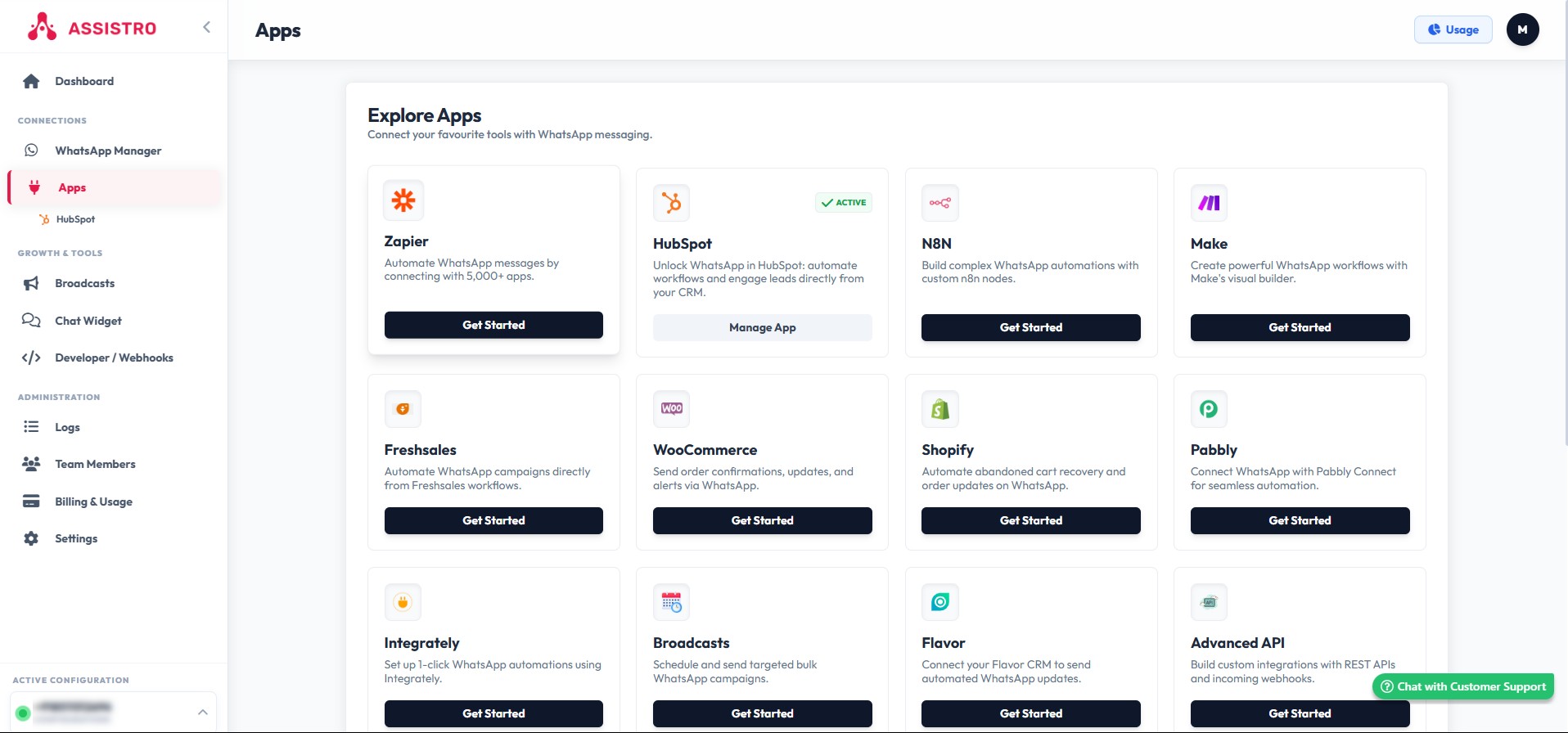
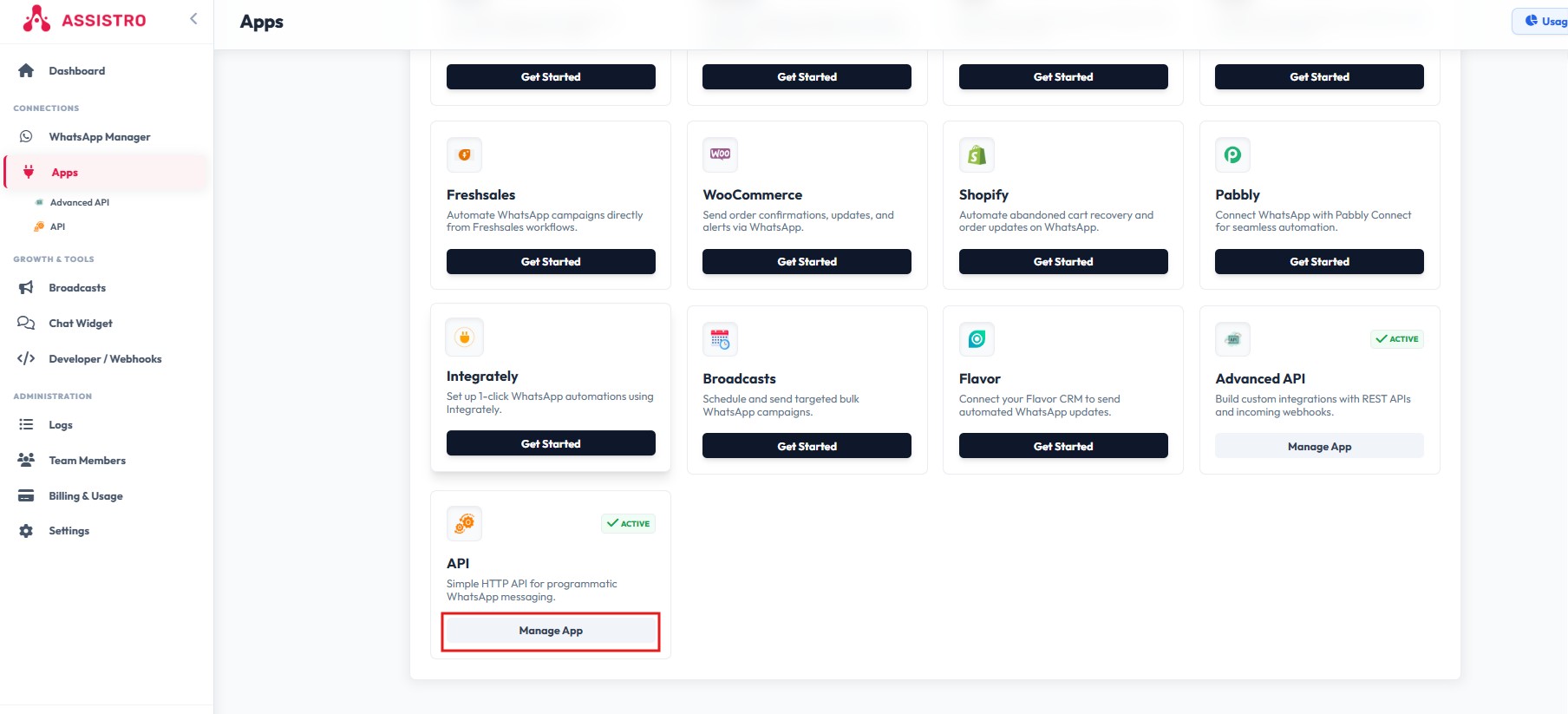
First of all, you will need to connect your WhatsApp with SyncMate, If you haven’t done this yet, please follow our Configuration guide.

Step 2

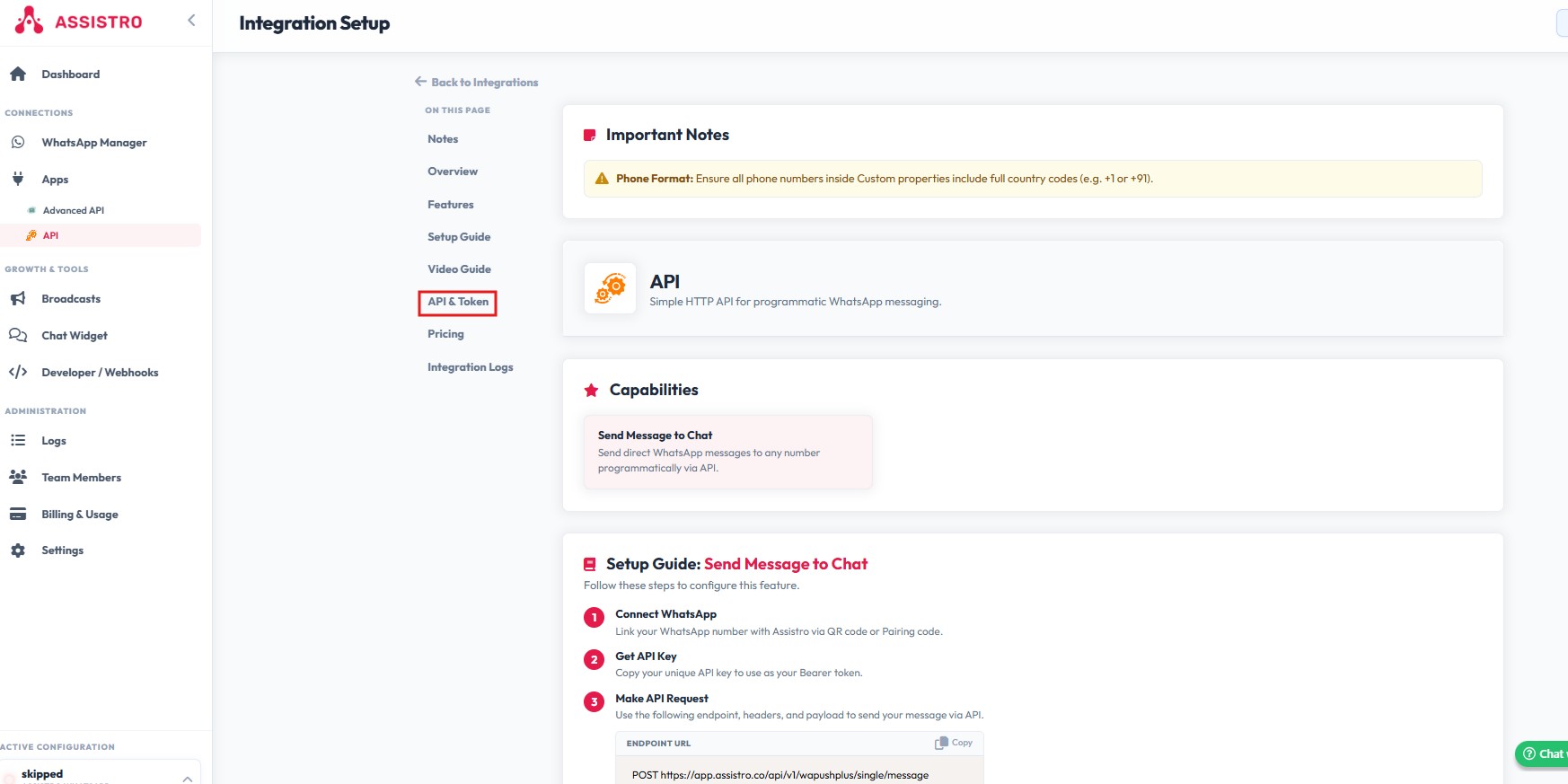
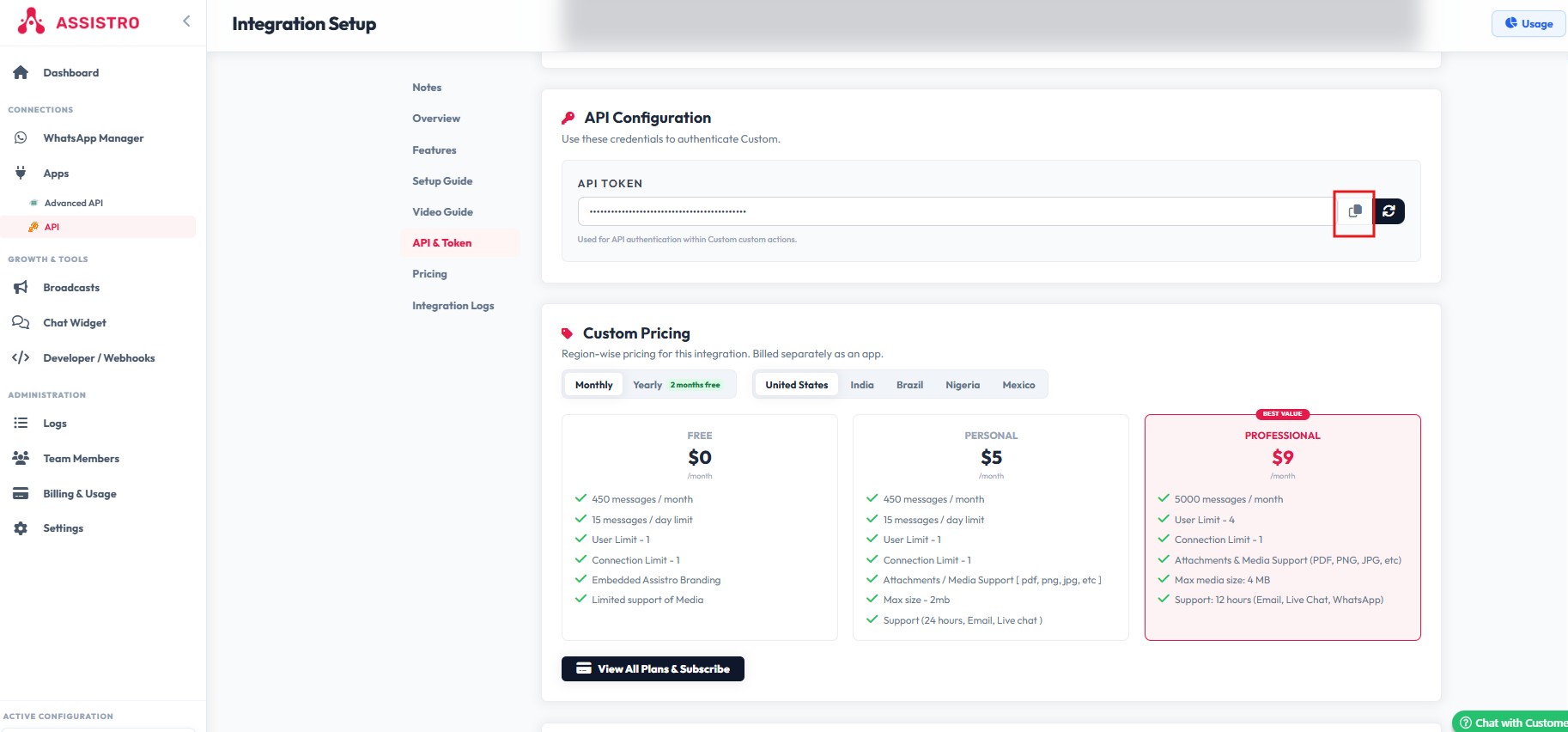
Copy the API key of the custom app.

TL;DR: Need more examples? Checkout our Postman Collection to test these endpoints directly in your environment. #

Step 3: Making API Requests
You can send messages using either our Single Messaging or Bulk Messaging endpoints. All API requests require your API Key to be passed as a Bearer token in the authorization header.

Required Headers:
The parameters that are required to make a post request on the above URL:

headers = {
	     "Authorization": "Bearer {bearer_token}",
	     "Content-Type": "application/json"
	  }

1. Single Messaging Endpoint #

POST https://app.assistro.co/api/v1/wapushplus/single/message

Use this endpoint to send a message to a single contact.

Request Body:

Request body = {
    "msgs": [
        {
            "number": 911234567890, //Whatsapp number with country code
            "message": "Hi! How are you?",
            "media": [
                {
                    "media_base64": "BASE64_STRING (without mime_type in the beginning)",
                    "file_name": "YOUR_FILENAME"
                }
            ]
        }
    ]
}

Notes: * "number": Must be a string containing the WhatsApp number with the country code (no + sign).

  • "type": Use 1 for direct messages, 2 for groups, or 3 for newsletters/channels.

  • "media_base64": (Optional) Provide the raw base64 string without the MIME type prefix (e.g., do not include data:image/png;base64,).

2. Bulk Messaging Endpoint #

POST https://app.assistro.co/api/v1/wapushplus/bulk/message

Use this endpoint to send multiple messages in a single API call.

Request Body:

Request body =  {
    "msgs": [
        {
            "number": 911234567890, //Whatsapp number with country code
            "message": "Hi! How are you?",
            "media": [
                {
                    "media_base64": "BASE64_STRING (without mime_type in the beginning)",
                    "file_name": "YOUR_FILENAME"
                }
            ]
        },
        {
            "number": 911234567890, //Whatsapp number with country code
            "message": "Hey there!"
        },
        {
            "number": 911234567890, //Whatsapp number with country code
            "message": "Good Morning!"
        }
    ]
}

Common Status Codes:

  • 200 OK: Your request was successful and messages are queued for delivery.

  • 400 Bad Request: There is a formatting error in your request body (e.g., missing a required field like "number" or "type").

  • 401 Unauthorized: Your API key is missing or invalid. Check your Bearer token.

  • 500 Internal Server Error: An unexpected error occurred on our end.

Updated on February 20, 2026

What are your Feelings

  • Happy
  • Normal
  • Sad
Share This Article :
  • Facebook
  • X
  • LinkedIn
  • Pinterest

Leave a Reply Cancel reply

Your email address will not be published. Required fields are marked *

Table of Contents
  • TL;DR: Need more examples? Checkout our Postman Collection to test these endpoints directly in your environment.
    • 1. Single Messaging Endpoint
    • 2. Bulk Messaging Endpoint
assistro

We’re your innovation partner, delivering cutting-edge solutions that elevate your business to the next level.


    Navigation

    • Integrations
    • Pricing
    • Contact Us

    Integrations

    • Zapier
    • Shopify
    • HubSpot
    • Wordpress
    • Chrome Extension
    • Metro Accounting [Coming soon]
    • Flavor CRM [Coming soon]

    Learn 

    • Blogs
    • Developers
    • User Guide
    • Tutorials

    © Copyright 2025, All Rights Reserved by Assistro