
Skip to content
assostro-header-logo
assistro
  • Integrations
    • Zapier
    • Shopify
    • HubSpot
    • Make
    • N8N
    • Chrome Extension
      • HubSpot
      • ClickUp
      • Monday.com
    • Flavor CRM
    • WordPress (Coming soon)
    • Metro Accounting (Coming soon)
  • Learn
    • Blog
    • Developer Guide
    • User Guide
    • Tutorial
  • Pricing
  • Contact Us
  • Get Started
Get Started

Extension

5
  • Define your own template to send schedule message
  • Send Message at a scheduled time using SyncMate
  • Bulk messaging at a scheduled time using SyncMate
  • Sending a Direct Message Without Saving a Number on WhatsApp
  • An onboarding guide for Extension

Other

23
  • How to Remove Branding from Messages
  • Connect your monday.com App with SyncMate
  • How to Get API Key / Access Token
  • QR Code Not Generating
  • How to Send an Image
  • Messages Failed Due to Daily Limit
  • How to Change WhatsApp Number
  • How to Check if WhatsApp is Connected
  • Messages Are Being Delivered Slowly
  • Waiting for this message. This may take a while
  • Message Not Received / Not Sent
  • Messages Stuck in Queue
  • How to use SyncMate in a 3rd Party application via OAuth – The Secure way
  • How to Add More Message Credits
  • How to Cancel Your Subscription
  • How to Subscribe to a Plan
  • Resolving Message Sending Failures
  • How to Keep Your WhatsApp Account Safe & Avoid Bans
  • How to back up your WhatsApp chats in HubSpot?
  • SyncMate User Guide: Regenerating Your Token
  • Getting Started with SyncMate and Shopify Integration: A Step-by-Step Guide
  • After Installation : Setting up SyncMate Chrome Extension
  • Assistro Dashboard

SyncMate

6
  • How to Connect Your Meta WhatsApp Cloud API with SyncMate?
  • Connect your WooCommerce App with SyncMate
  • Connect your Contact Form 7 App with SyncMate
  • Troubleshooting and Reconnection Guide
  • How to use SyncMate X Shopify Application ?
  • How to send automated WhatsApp messages on Google Calendar events?

Developer Guide

3
  • SyncMate User Guide: Regenerating Your Token
  • How to Set Up Webhooks for WhatsApp Events in SyncMate
  • Connect your Custom App with SyncMate

Tutorial

2
  • SyncMate Introduction Video
  • Use WhatsApp API with Custom applications using SyncMate

HubSpot

9
  • Connect your HubSpot App with SyncMate
  • How to Save a WhatsApp Contact to HubSpot Using SyncMate?
  • How to create a Deal for a WhatsApp Contact in HubSpot via SyncMate?
  • How to Create a Note for a WhatsApp Contact in HubSpot using SyncMate?
  • How to Create a Task for a WhatsApp Contact in HubSpot using SyncMate?
  • How to Create a Ticket for a WhatsApp Contact in HubSpot through SyncMate?
  • How to Create a Log for a WhatsApp Contact in HubSpot through SyncMate?
  • How to Back Up and associate Your Contacts’ Data in HubSpot?
  • An Onboarding Guide for HubSpot Via SyncMate

Zapier

7
  • How to fetch WhatsApp Group ID – Guide to Fetch Group ID
  • How to fetch WhatsApp Channel or Newsletter ID – Guide to Fetch Channel or Newsletter ID
  • How to connect Zapier with SyncMate?
  • How to send a WhatsApp notification to any individual?
  • How to send a WhatsApp Notification to any group or channel?
  • An onboarding guide for Zapier via SyncMate
  • How to connect Flavor CRM with SyncMate?

N8N

2
  • How to Send WhatsApp Messages via Assistro in n8n?
  • Connect your N8N with SyncMate

Shopify

1
  • Connect your Shopify with SyncMate

make

1
  • Connect your Make with SyncMate

Pabbly

1
  • Connect your Pabbly with SyncMate

Integrately

1
  • Connect your Integrately with SyncMate
View Categories
  • Home
  • user-guide
  • SyncMate
  • How to Connect Your Meta WhatsApp Cloud API with SyncMate?

How to Connect Your Meta WhatsApp Cloud API with SyncMate?

2 min read

This guide walks you through connecting your Meta WhatsApp Cloud API (official WhatsApp Business API) to SyncMate. Connecting Meta Cloud API enables high-volume messaging, verified green ticks, official message templates, and cloud reliability without phone battery dependencies.

Prerequisites & Co-existence Support #

Before starting the setup, ensure you have prepared the following:

  • Facebook Admin Account: Administrator access to your company’s Facebook Business Manager.
  • Business Phone Number: A phone number capable of receiving SMS or Voice Call OTP verification codes.
  • ✅ WhatsApp Co-existence Supported: You can connect your existing phone number to Meta Cloud API while continuing to use it on your mobile WhatsApp app as normal. No account deletion is required!

1
Open WhatsApp Manager in SyncMate #

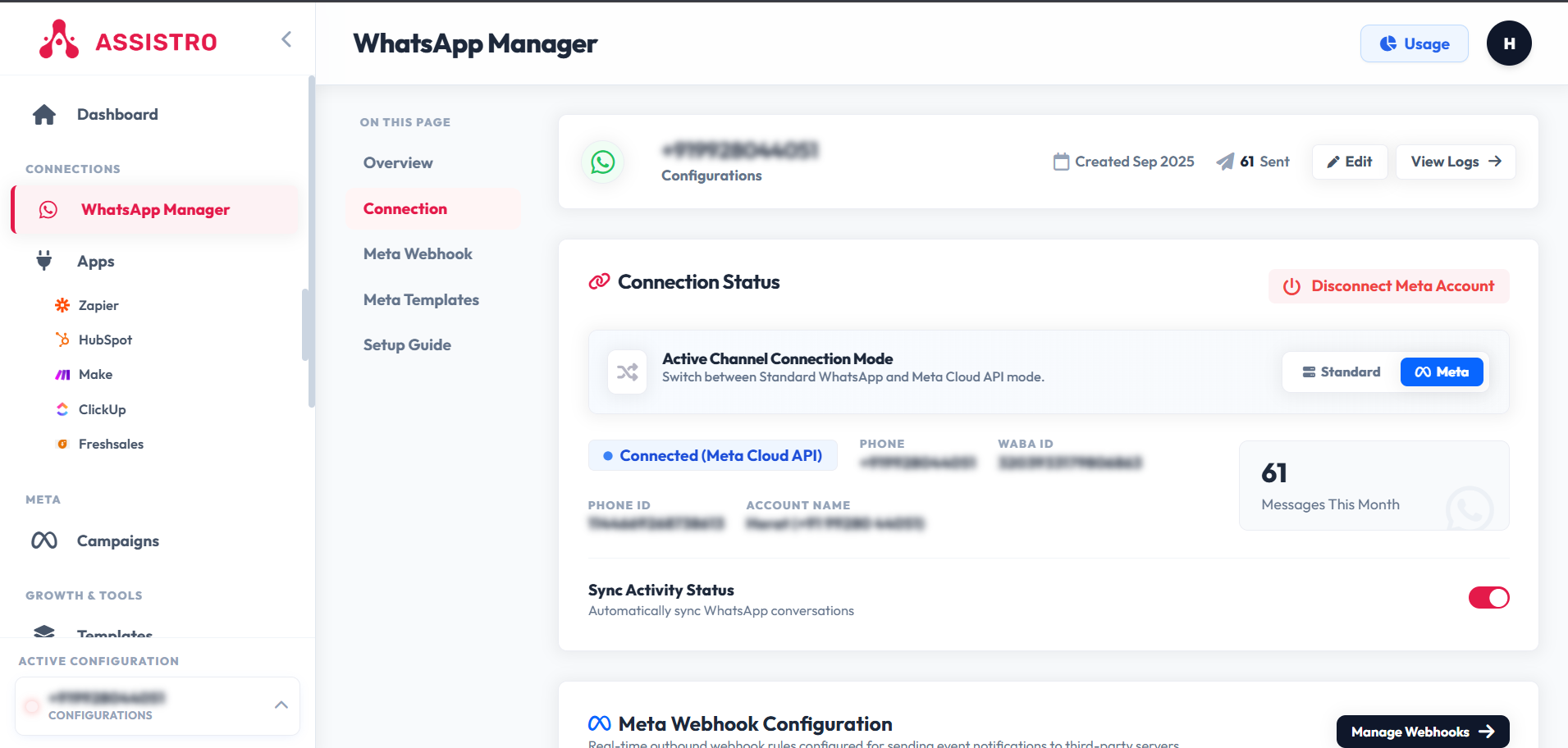
Log in to your SyncMate / Assistro dashboard. In the left navigation menu under Connections, click WhatsApp Manager (/whatsapp/configuration). At the top of the connection status card, click Meta in the Active Channel Connection Mode bar.
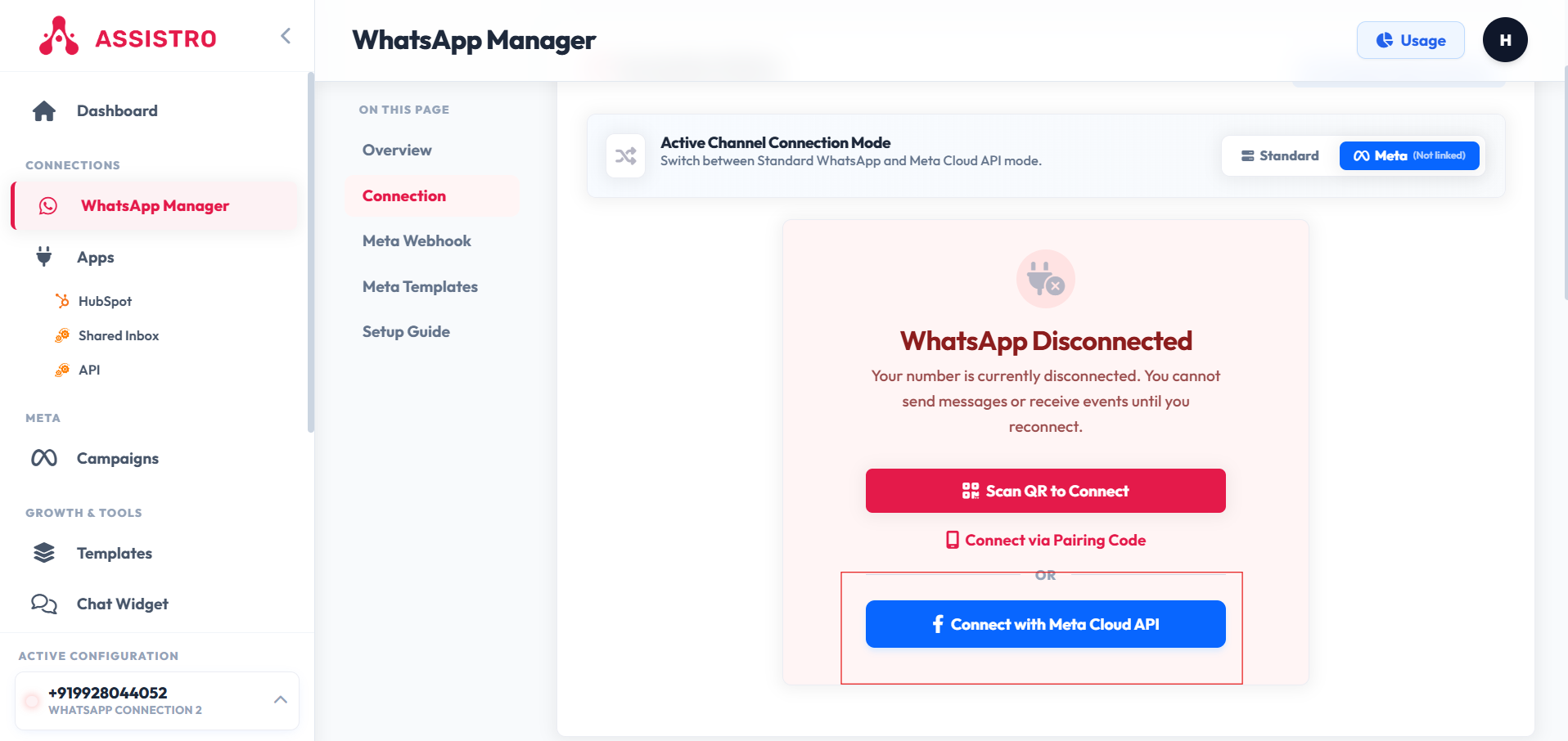
SyncMate WhatsApp Manager - Select Meta Connection Mode

2
Launch Meta Embedded Signup #

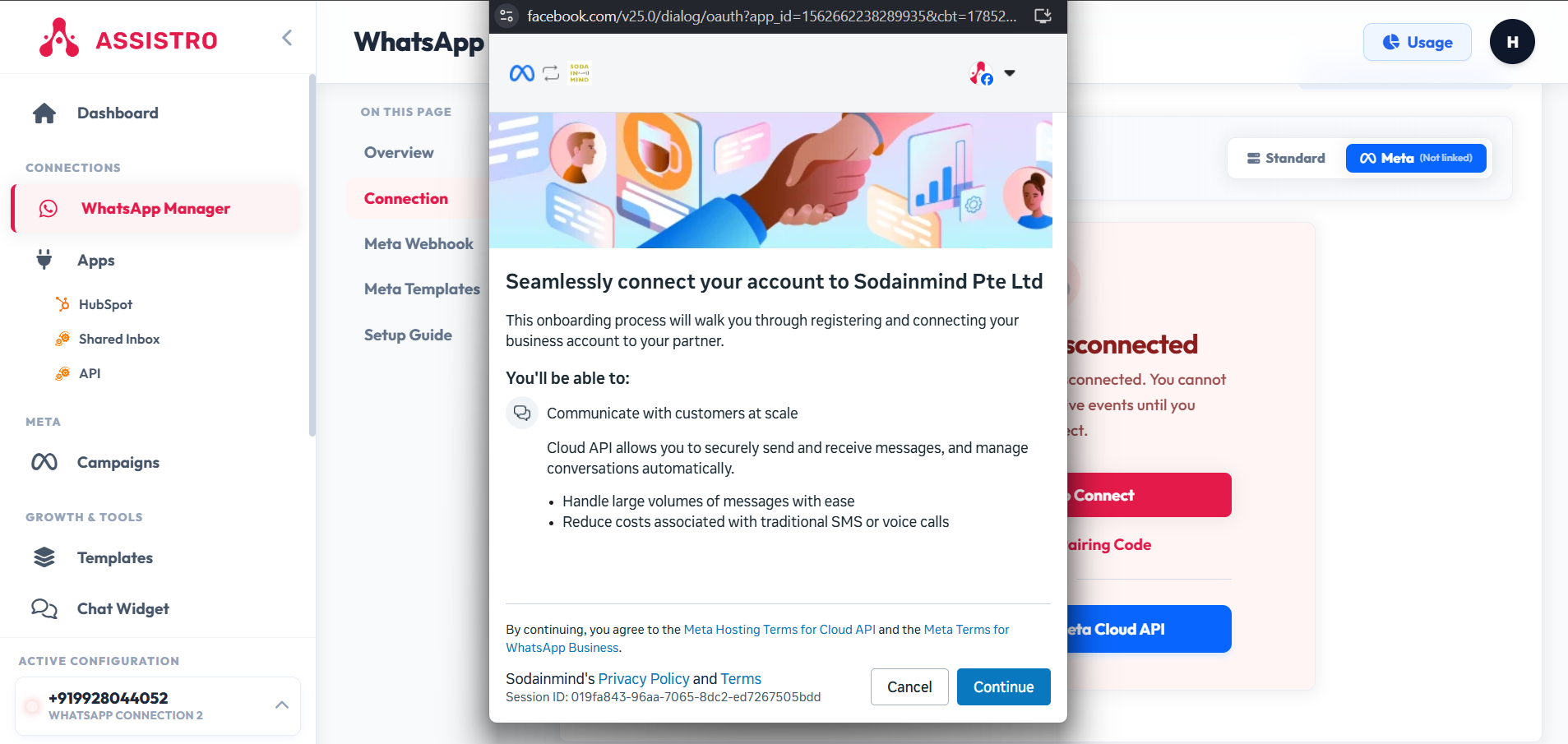
Click the blue button labeled “Connect with Meta Cloud API”. A secure Facebook popup window will appear. Log in using your Facebook account credentials.
3
Select Facebook Business Account & Profile #

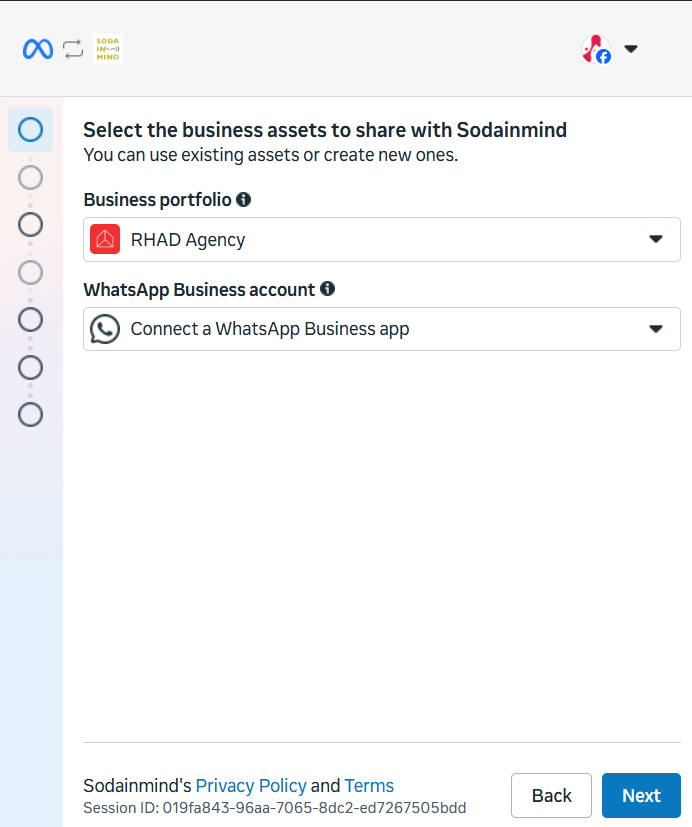
Select your Facebook Business Manager Account from the list. Next, fill in your WhatsApp Business Profile Name, Display Name, Time Zone, Currency, and Category (e.g. Retail, Financial Services, Education).
4
Register & Verify Business Phone Number #

Enter your business phone number with international country code. Select your preferred verification method: Text Message (SMS) or Voice Call. Type the 6-digit OTP code sent by Meta to complete verification.

5
Automatic WABA & Webhook Sync #

Click Finish. Your WABA ID (WhatsApp Business Account ID), Phone Number ID, and official Meta Cloud API Webhook configuration will automatically link to your SyncMate workspace!
🎉 Setup Complete! #

Your Meta WhatsApp Cloud API is now connected. You can now launch automated broadcasts, sync contacts to CRM, and manage team live chats.

🔗 Official Meta & Facebook Help Center Resources #

For additional details on managing your Facebook Business Portfolio and WhatsApp Accounts, refer to Meta’s official help guides:

  • 📘 How to Create & Set Up a Meta Business Portfolio
  • 📗 How to Check & Manage Your WhatsApp Account in Meta Business Suite
  • 📙 WhatsApp Business Account Display Name & Verification Guidelines
  • ⚖️ Meta WhatsApp Commerce & Business Messaging Policy
  • 🔒 How to Verify Your Business in Meta Business Manager
Updated on July 28, 2026

What are your Feelings

  • Happy
  • Normal
  • Sad
Share This Article :
  • Facebook
  • X
  • LinkedIn
  • Pinterest
Table of Contents
  • Prerequisites & Co-existence Support
  • 1 Open WhatsApp Manager in SyncMate
  • 2 Launch Meta Embedded Signup
  • 3 Select Facebook Business Account & Profile
  • 4 Register & Verify Business Phone Number
  • 5 Automatic WABA & Webhook Sync
    • 🎉 Setup Complete!
    • 🔗 Official Meta & Facebook Help Center Resources
assistro

We’re your innovation partner, delivering cutting-edge solutions that elevate your business to the next level.


    Navigation

    • Integrations
    • Pricing
    • Contact Us

    Integrations

    • Zapier
    • Shopify
    • HubSpot
    • Wordpress
    • Chrome Extension
    • Metro Accounting [Coming soon]
    • Flavor CRM [Coming soon]

    Learn 

    • Blogs
    • Developers
    • User Guide
    • Tutorials

    © Copyright 2025, All Rights Reserved by Assistro

    WhatsApp is now inside your CRM!

    Install our new free Chrome extension to link WhatsApp chats directly to HubSpot, ClickUp, and Monday.com without ever switching tabs.

    Link WhatsApp chats directly to HubSpot, ClickUp, and monday.com without ever switching tabs.  Install Now