
To connect your monday.com App with SyncMate, you need to follow the easy steps below:
Step 1: #
First of all, you will need to connect you WhatsApp with SyncMate, follow the Connection guide.
Step 2:
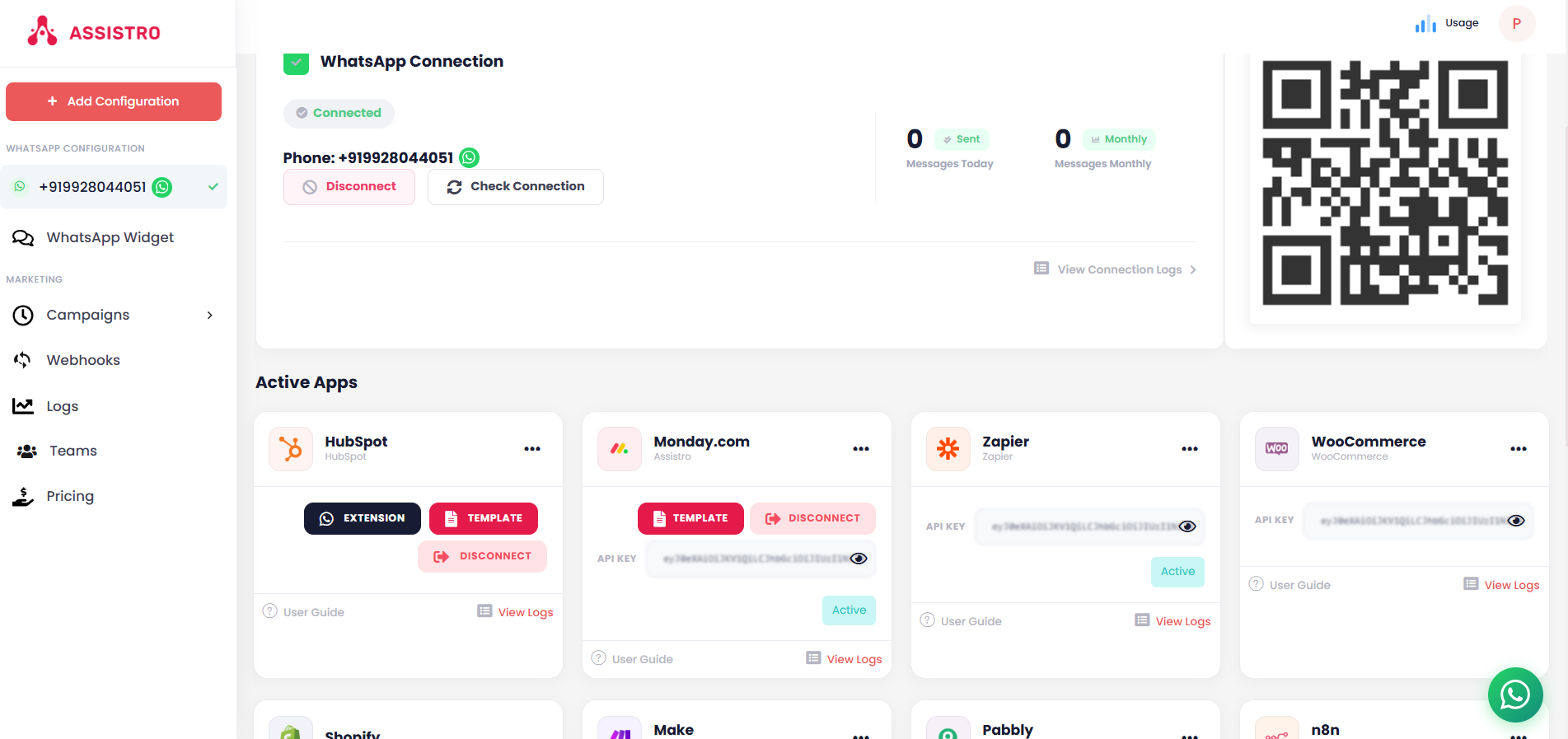
Once your WhatsApp is connected, Activate the HubSpot app.
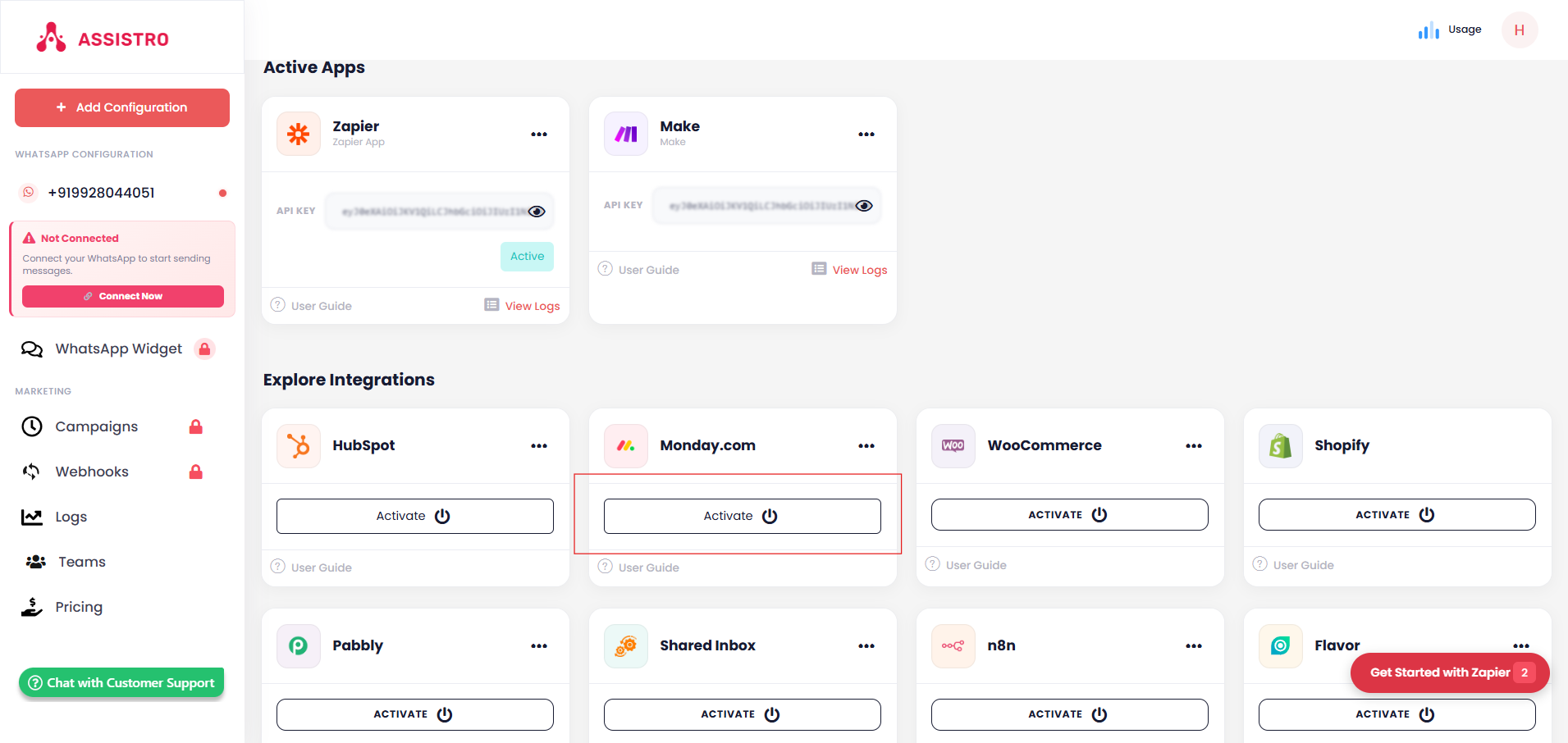
Step 3: #
After that, click on Connect button to connect with Monday
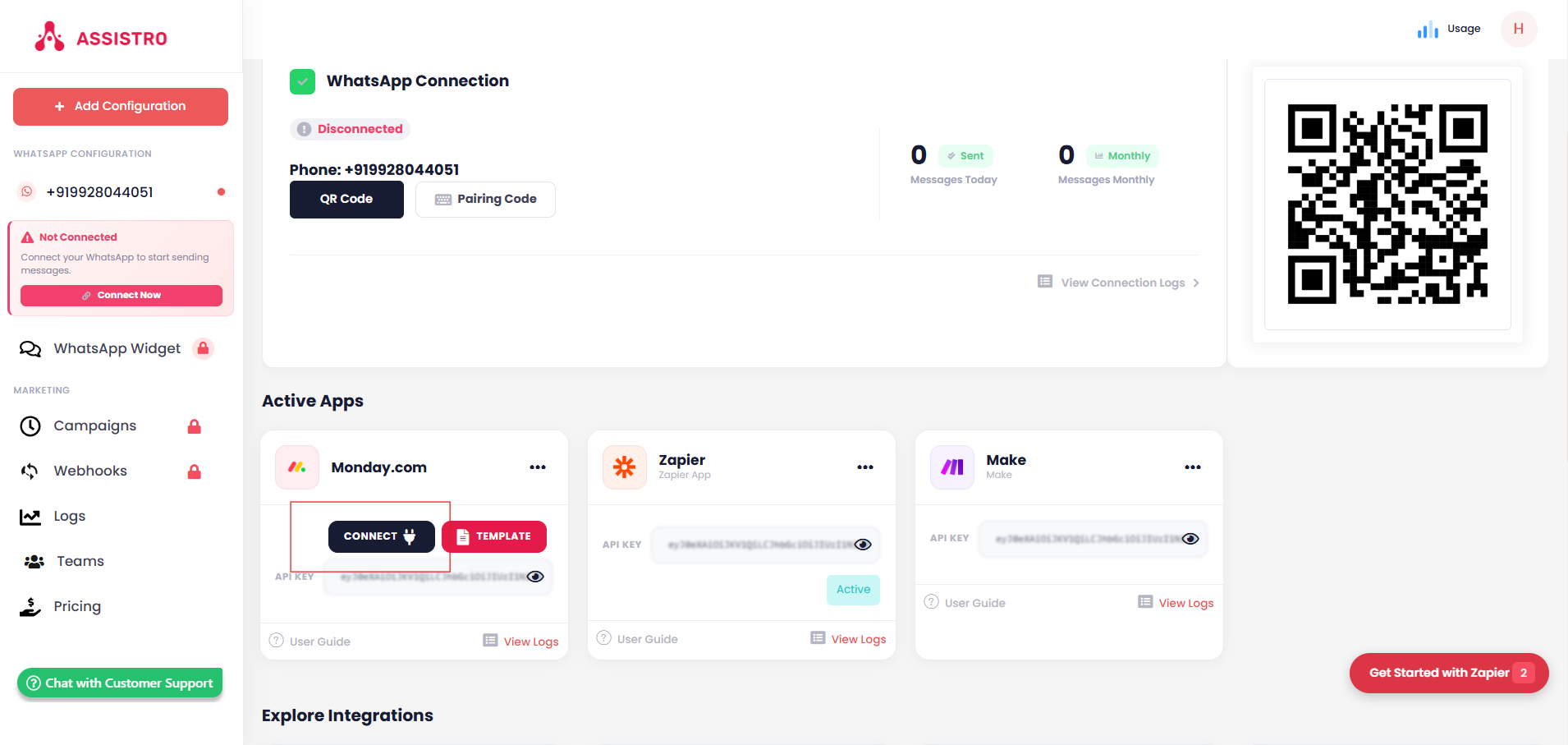
Step 4: #
You will be redirected to Monday OAuth page, where you need to select an account to proceed further.
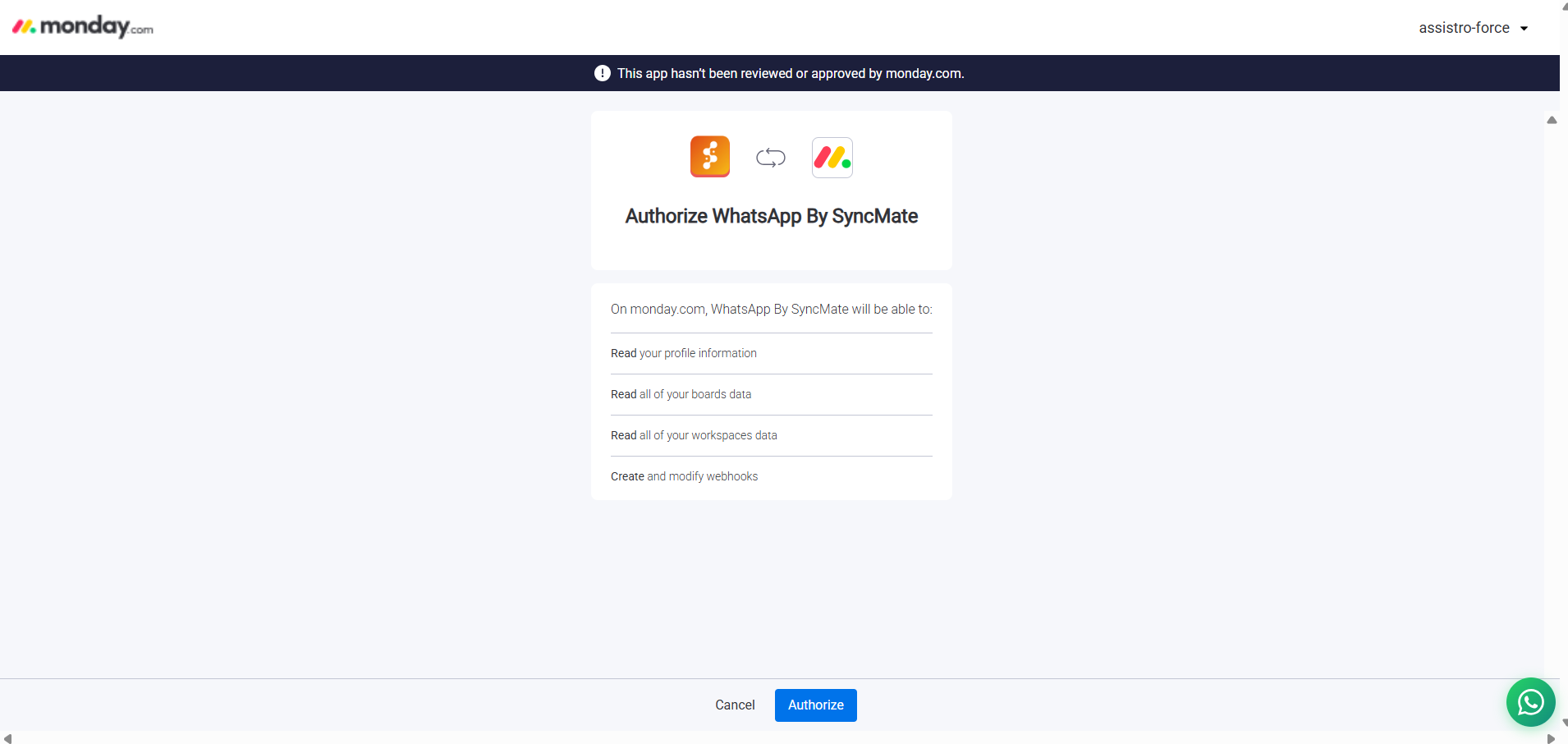
#
Step 5: #
Once you select your Monday account, your application is connected with Monday .Now you are all set to use the WhatsApp API with Monday workflows & Automation.
Step 6: #
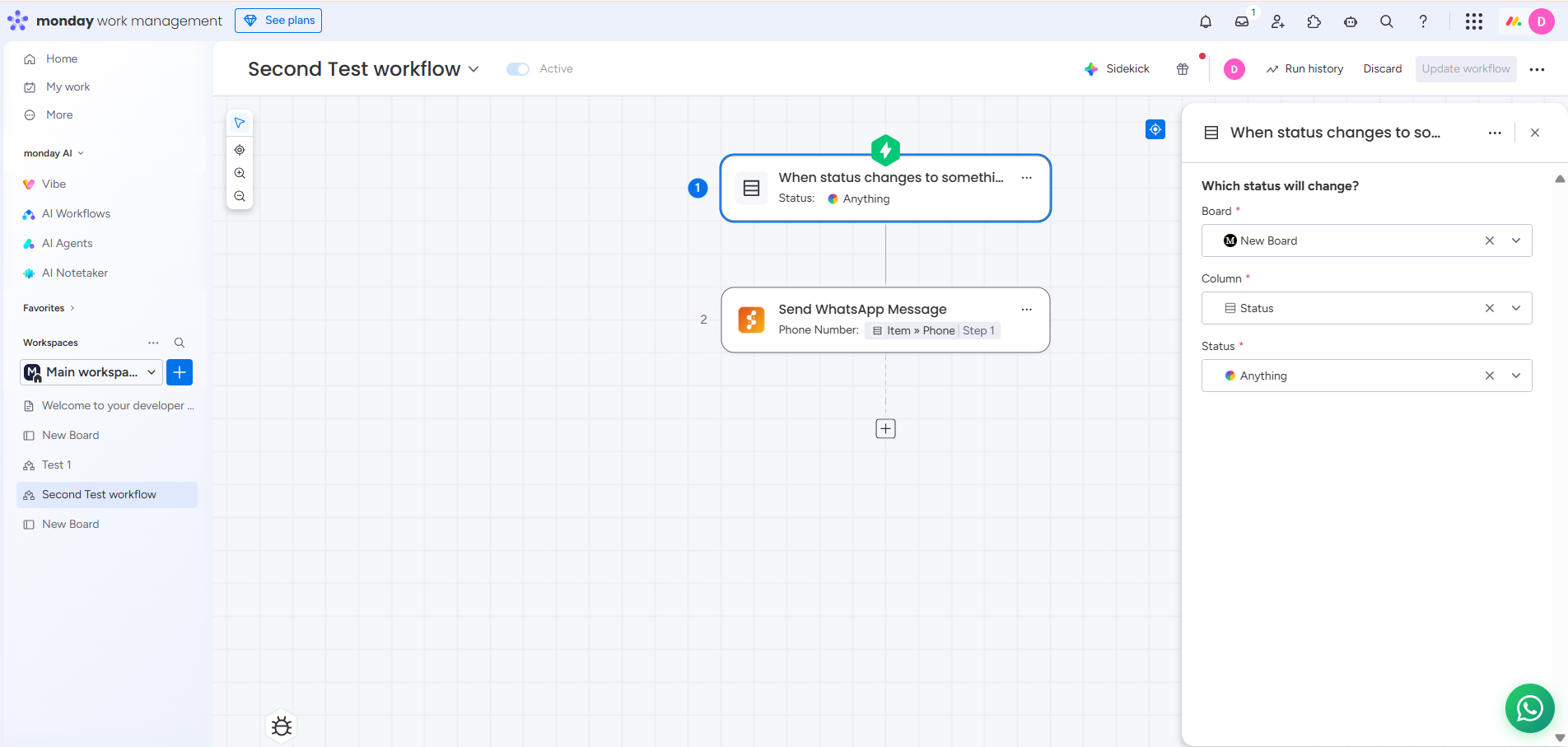
Now, you will need to create a workflow on Monday. Select a Trigger, status changes to something workflow.
Step 7: #
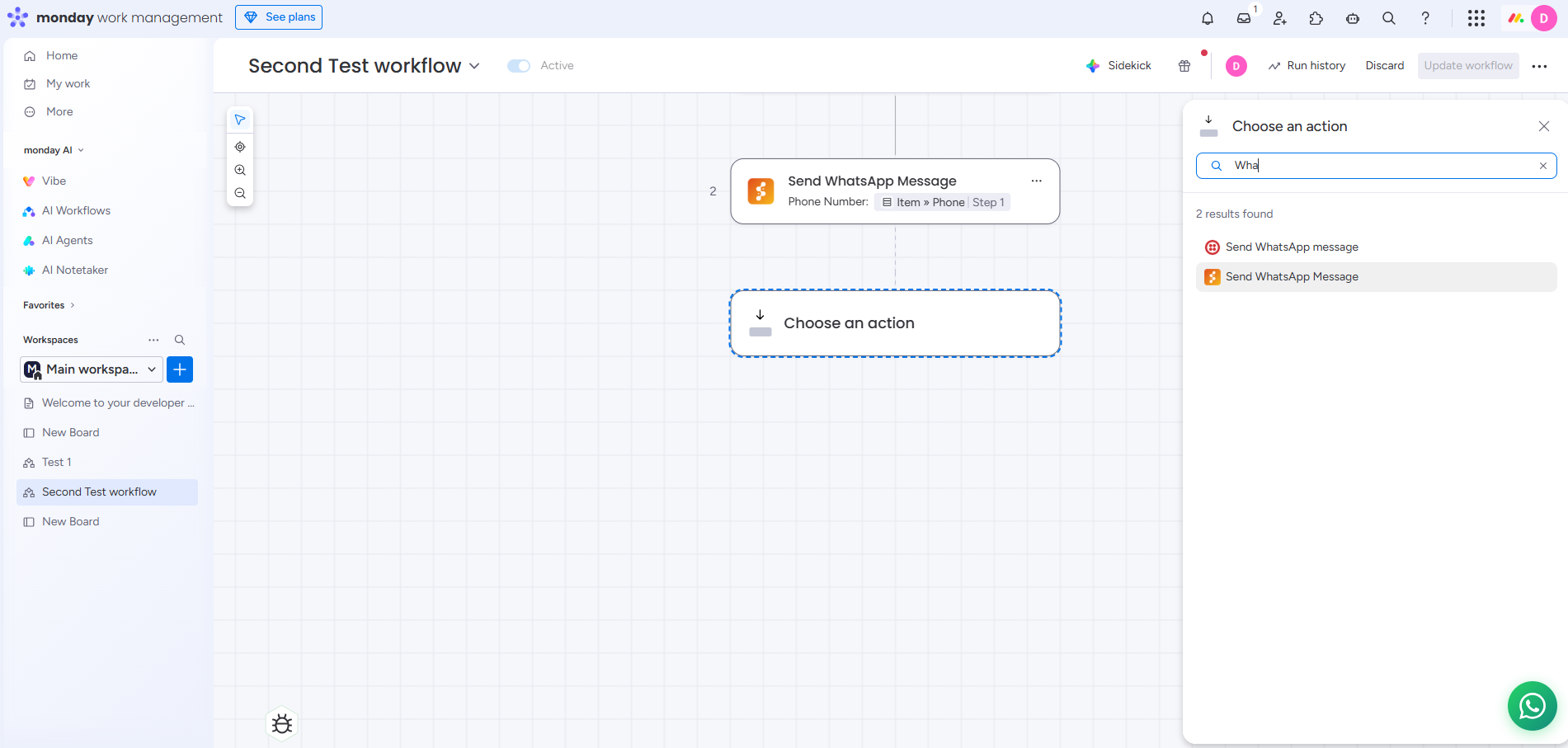
Setup triggers as per your requirement, click on the “+” icon and Action Select search for Send WhatsApp Message, you will see the workflow action there.
Step 8: #
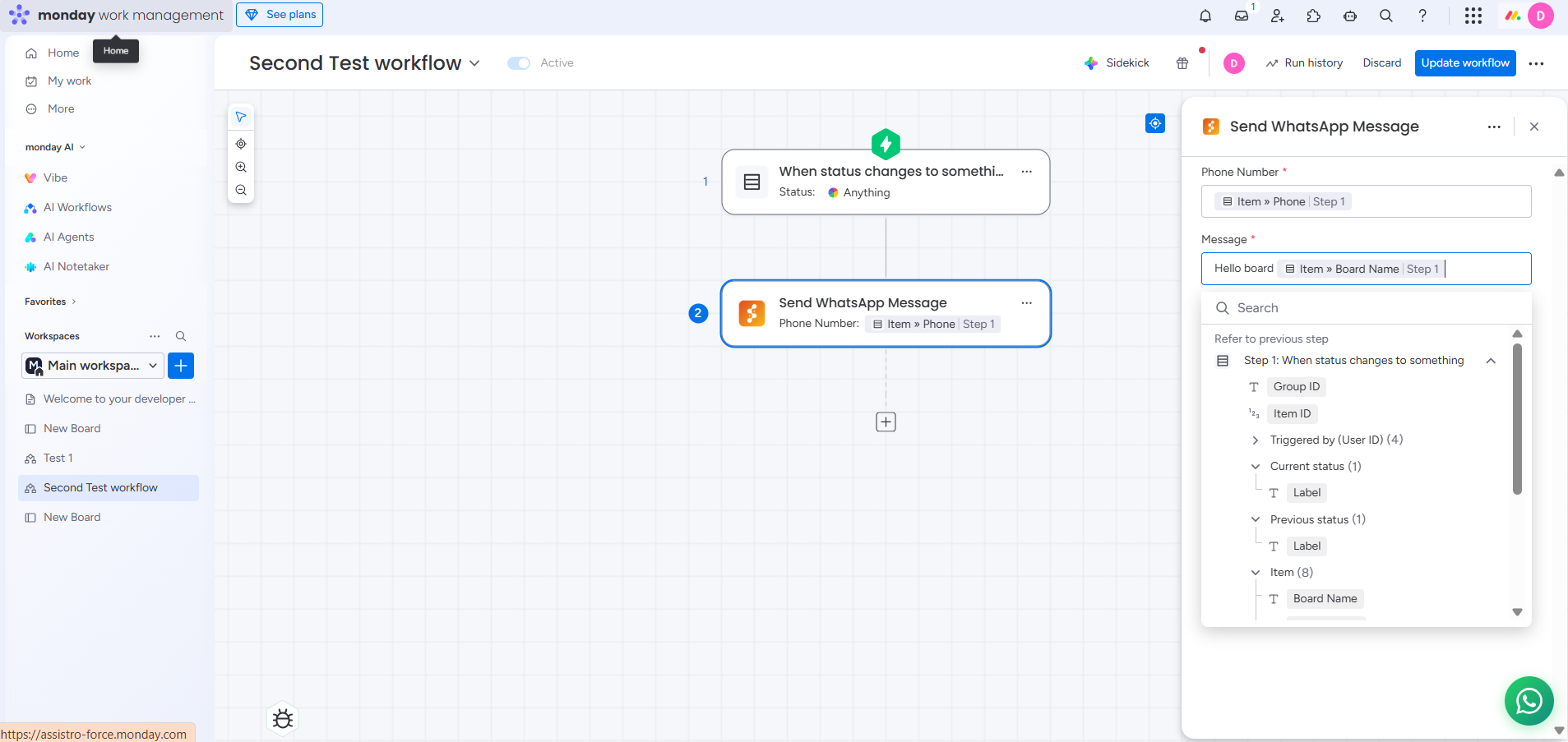
Select Phone as contact token and enter your desired message and click on Save.
Step 9: #
Once you have saved your details, you will see the action tab of Send WhatsApp Message, Click on Review and Publish & turn your workflow on.
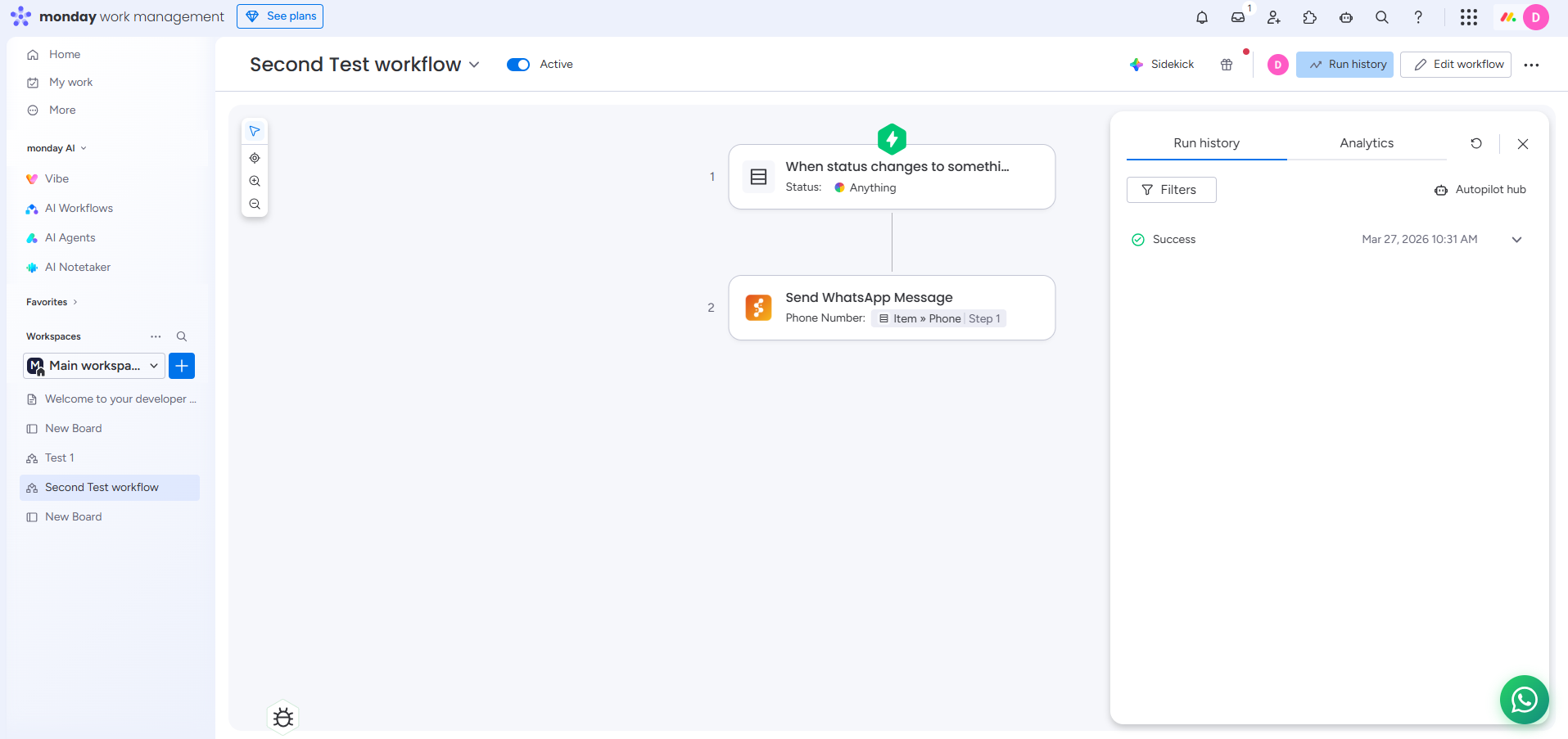
Step 10: #
That’s it , now a WhatsApp message will be sent to the contact, whenever you status changes on board in Monday