
This guide walks you through connecting your Meta WhatsApp Cloud API (official WhatsApp Business API) to SyncMate. Connecting Meta Cloud API enables high-volume messaging, verified green ticks, official message templates, and cloud reliability without phone battery dependencies.
Prerequisites & Co-existence Support #
Before starting the setup, ensure you have prepared the following:
- Facebook Admin Account: Administrator access to your company’s Facebook Business Manager.
- Business Phone Number: A phone number capable of receiving SMS or Voice Call OTP verification codes.
- ✅ WhatsApp Co-existence Supported: You can connect your existing phone number to Meta Cloud API while continuing to use it on your mobile WhatsApp app as normal. No account deletion is required!
1
Open WhatsApp Manager in SyncMate #
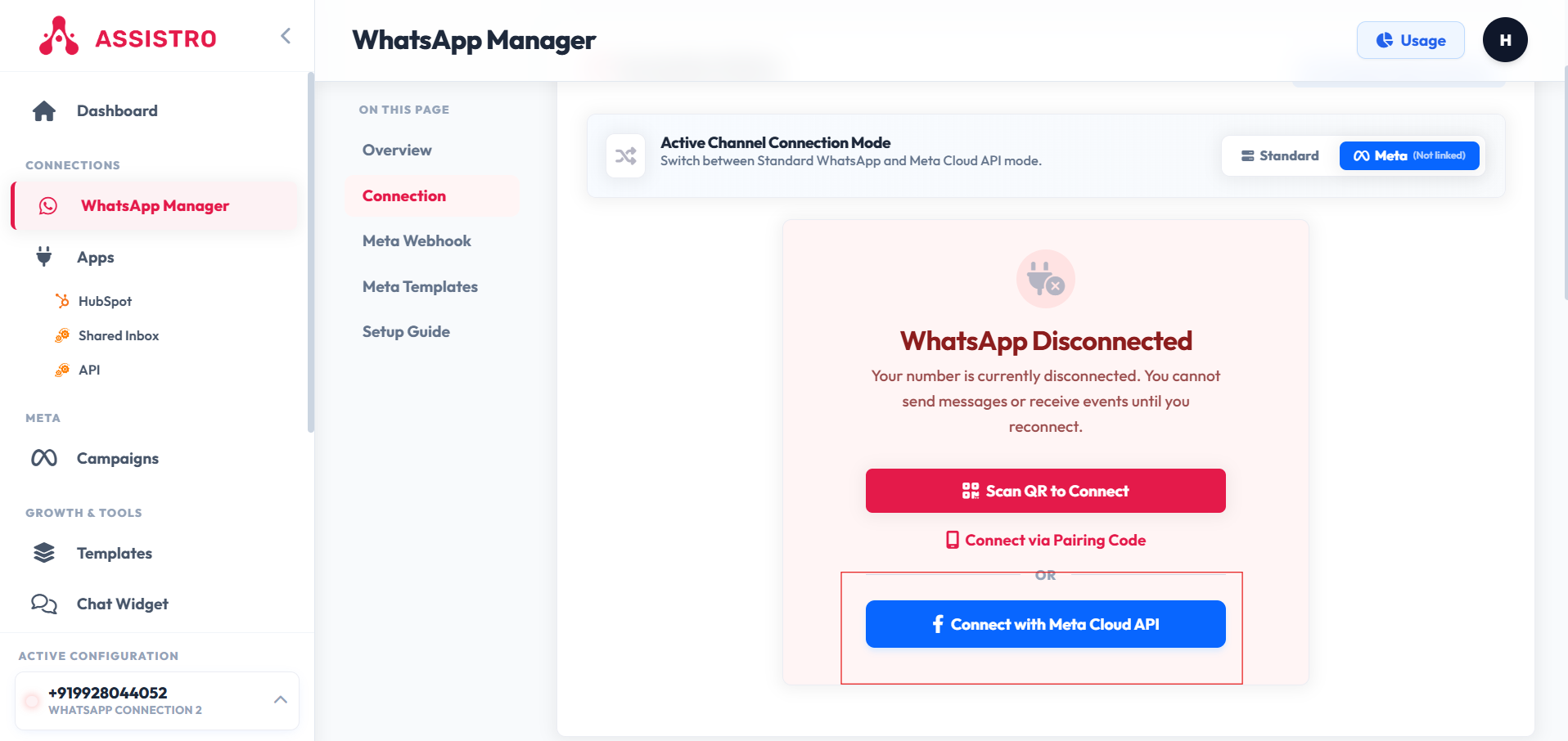
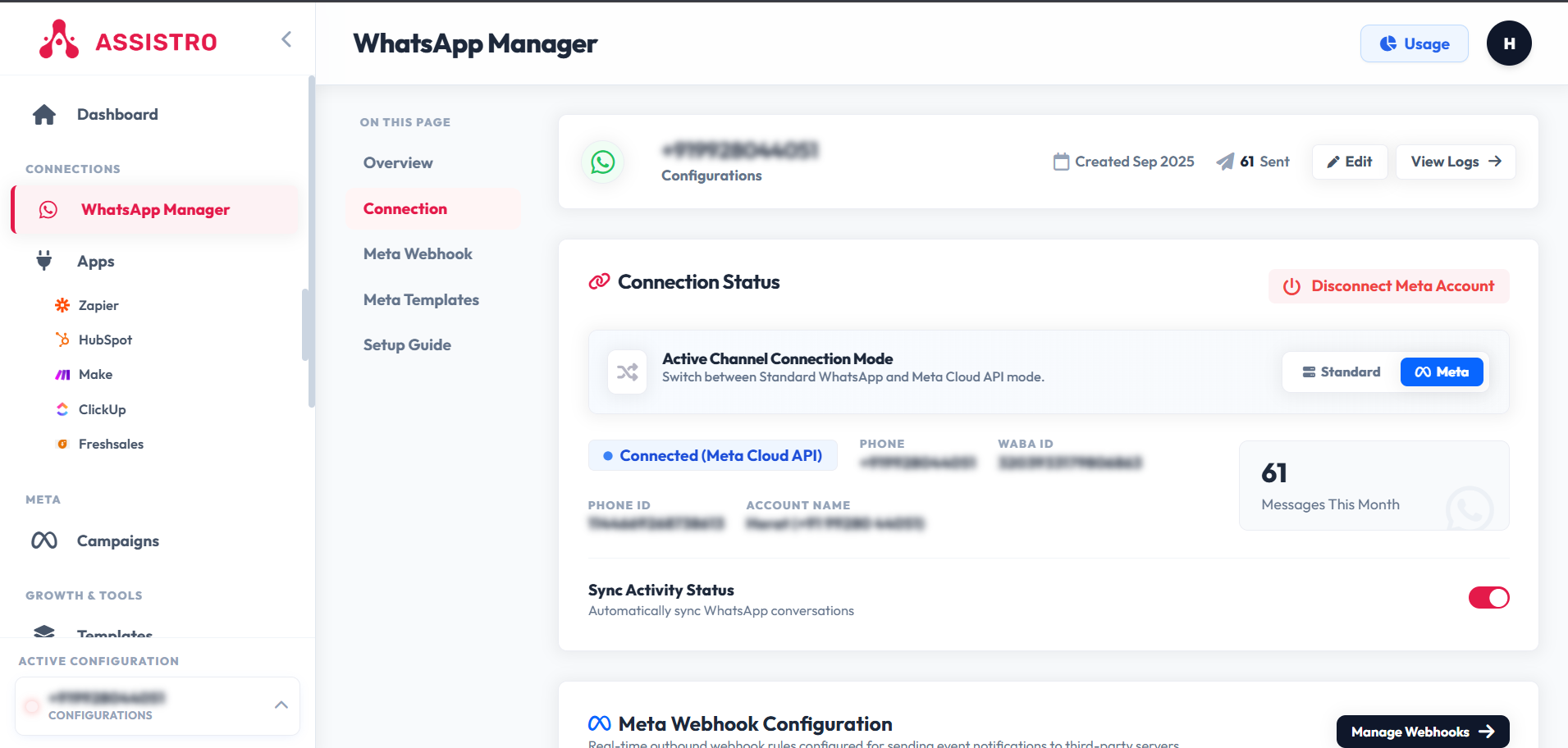
Log in to your SyncMate / Assistro dashboard. In the left navigation menu under Connections, click WhatsApp Manager (/whatsapp/configuration). At the top of the connection status card, click Meta in the Active Channel Connection Mode bar.
2
Launch Meta Embedded Signup #
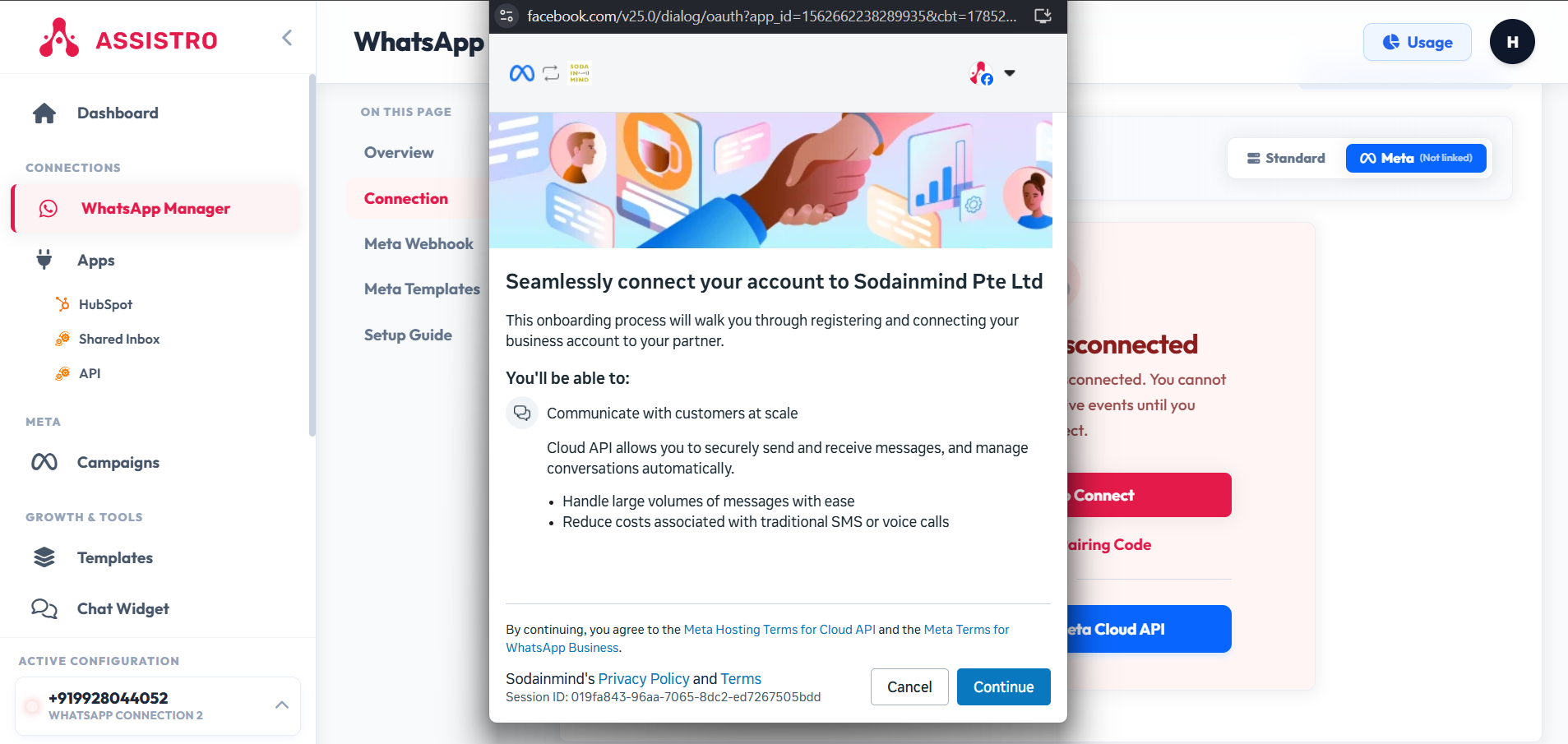
Click the blue button labeled “Connect with Meta Cloud API”. A secure Facebook popup window will appear. Log in using your Facebook account credentials.
3
Select Facebook Business Account & Profile #
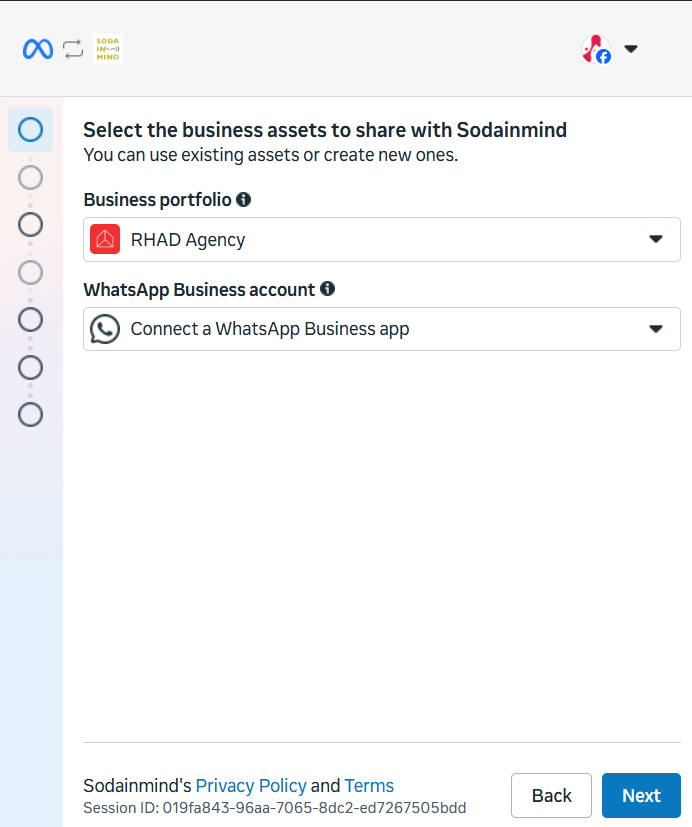
Select your Facebook Business Manager Account from the list. Next, fill in your WhatsApp Business Profile Name, Display Name, Time Zone, Currency, and Category (e.g. Retail, Financial Services, Education).
4
Register & Verify Business Phone Number #
Enter your business phone number with international country code. Select your preferred verification method: Text Message (SMS) or Voice Call. Type the 6-digit OTP code sent by Meta to complete verification.
5
Automatic WABA & Webhook Sync #
Click Finish. Your WABA ID (WhatsApp Business Account ID), Phone Number ID, and official Meta Cloud API Webhook configuration will automatically link to your SyncMate workspace!
🎉 Setup Complete! #
Your Meta WhatsApp Cloud API is now connected. You can now launch automated broadcasts, sync contacts to CRM, and manage team live chats.
🔗 Official Meta & Facebook Help Center Resources #
For additional details on managing your Facebook Business Portfolio and WhatsApp Accounts, refer to Meta’s official help guides: